

Roof shape and planes
A pitched roof from a few numbers, from a drawn footprint, or plane by plane. Mono-pitch, gable and hip roofs, openings and a more complex roof, such as a mansard.
Pitched roof editor
- In the project cockpit, on the
Roofstab, clickOpen editorin thePitched roof editorcard. - The
Stepswindow on the right guides you through the steps: background and scale (optional),Footprint,Roof shape,OpeningsandDone. The open step is shown in the panel on the left. - Save each step with its button at the bottom of the panel. Saving opens the next step. A locked step tells you what it is missing.
The canvas, mouse and keys work the same as in the other editors, see Drawing a roof. A pitched roof is created as a separate project, see New project and roof type.
Quick setup
The quickest way for a common roof. An empty roof offers it as the first option in the How would you like to start? card.
- Click
Quick setup. - Choose the
Footprint:RectangleorL-shape. - Enter the footprint dimensions in millimetres. For an L-shape, also enter the notch dimensions and its corner in the
Notch positionsection. The picture next to the fields explains the letters A to D. - Choose the
Roof shape:Mono-pitch roof,Gable rooforHipped roof. - Enter the
Pitchin degrees. - For a gable roof over a rectangle, choose the
Ridge:Along the longer sideorAlong the shorter side. For a mono-pitch roof, choose theFall direction. A hip roof derives its ridge by itself. - The preview appears on the canvas by itself and saves nothing. Save the roof with the
Create roofbutton at the bottom of the panel. Over a roof that is already saved, the button is calledReplace roof.
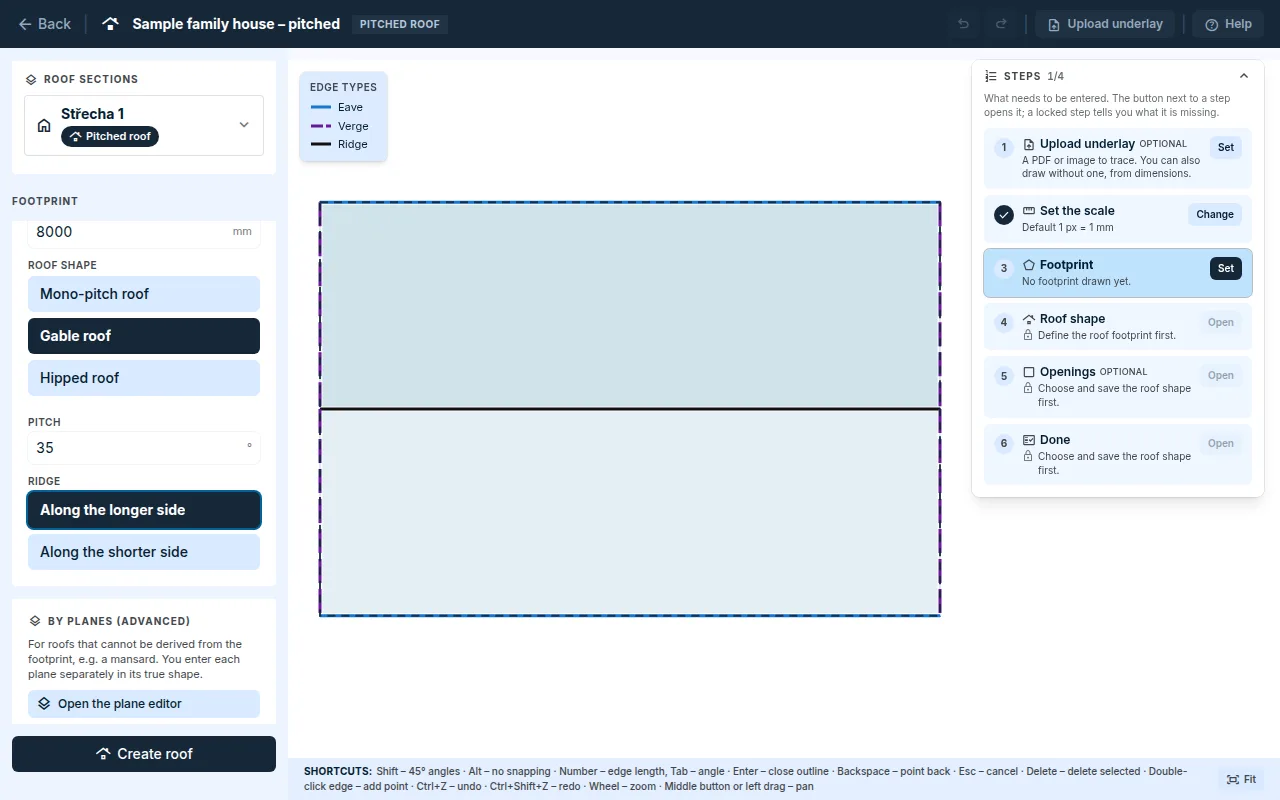
Quick setup creates the footprint and the shape at once and replaces the existing footprint. A drawn footprint stays if you choose drawing instead.
Footprint from a background
- In the
How would you like to start?card, chooseUpload an underlay(PDF or image) orDraw without an underlay. In theFootprintstep, you then switch betweenQuick setupandDraw. - With a background, set the scale from a known length, see Background and scale.
- Use the
Draw footprinttool to trace the roof outline as you see it in the plan drawing. - Click
Save footprint.
Roof shape
Planes, ridges, hips and valleys are not drawn. The application calculates them from the footprint and the pitch.
- In the
Roof shapestep, mark the edges. Click an edge on the plan or in the list: it toggles betweenEaveandVerge. The default is eave. - Enter the
Pitch. - Click
Save roof shape.
- Instead of marking the edges, you can choose the shape with
Enter the roof type manually: a mono-pitch, gable or hip roof and its parameters. - Edge marking only works for a footprint whose adjacent edges meet at right angles. The footprint may be rotated in the drawing.
- The planes are labelled with the letters A, B, C … They have the same names in the covering, in the take-off and in the protocol.
- If you later edit and save the footprint, the roof shape is recalculated over it.
Openings
- In the
Openingsstep, click an element type, for exampleChimneyorSkylight, and draw its outline. - You can enter a rectangular element faster with
Enter by size: choose theOpening typeand enter the realWidth (across the slope)andHeight (along the slope)on the roof. Then clickPlace with a clickand the position on the roof. The application calculates the foreshortening in the plan from the pitch. - Click
Save openings.
For an opening, the application shows its real size on the roof, the distance from the eave and from the verge, and the flashing lengths on the eave side, on the ridge side and along the flanks. An opening must lie entirely within one plane, not across a ridge or hip.
Done
- The
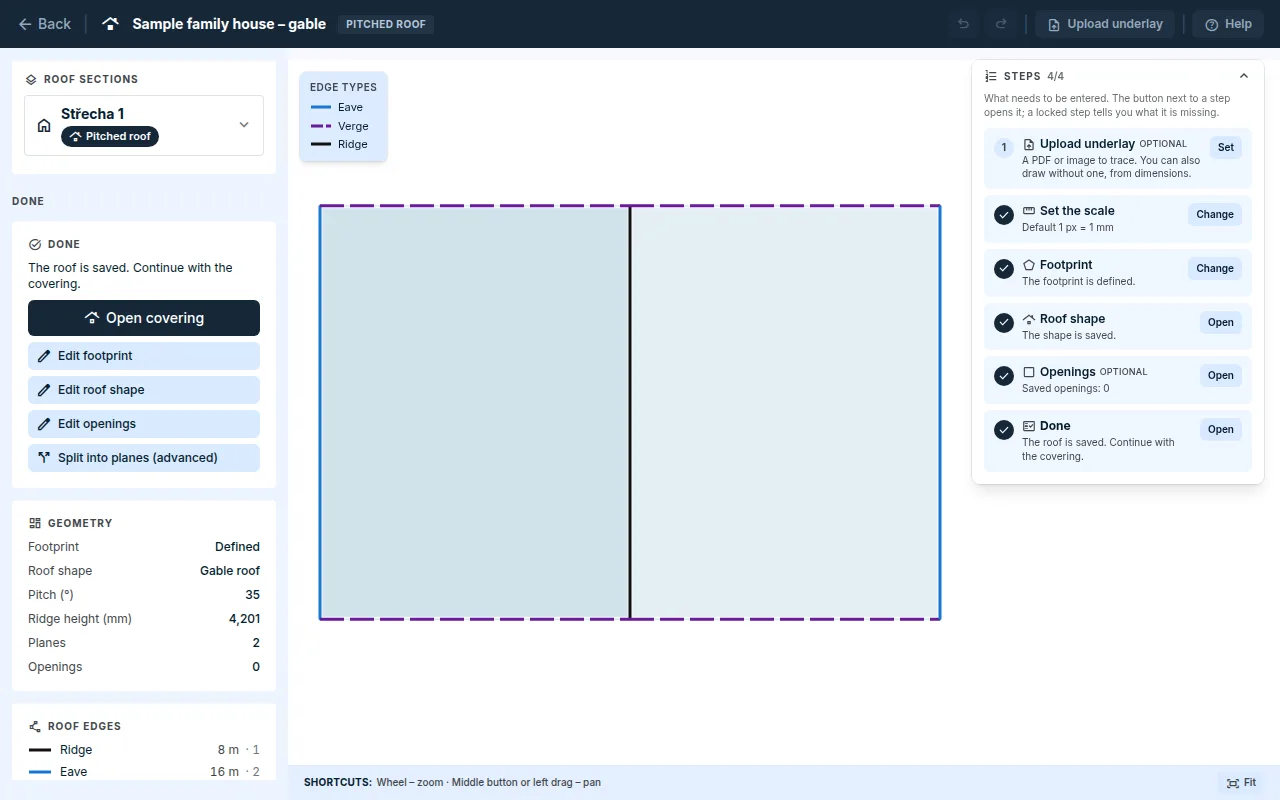
Donestep summarises the footprint, the shape, the number of planes and the openings. You can edit each part with the button next to it. - The
Open coveringbutton takes you on to choosing the covering, see Roof covering.
A more complex roof plane by plane
A roof that cannot be derived from the footprint, such as a mansard or planes with different pitches, is entered in the plane editor.
- Empty roof: in the
How would you like to start?card, theBy planes (advanced)option andOpen the plane editor. - Saved roof:
Split into planesin theRoof shapestep, orSplit into planes (advanced)in theDonestep. The saved roof is converted into planes and you then edit the design.
Procedure in the plane editor:
Planes: add a plane with theAdd planebutton and draw it with theOutlinetool in its true shape, viewed perpendicular to it. The dimensions are therefore along the rafter, not in plan. Enter thePitch.Edge roles: click an edge and choose its role, for exampleEave,Verge,Ridge,Hip,Valley,Wall abutmentorSlope break.Pairs: a ridge, hip, valley and slope break are shared by two planes. Pair an edge with theAcceptbutton next to the suggestion, or with thePair by clickingbutton.Check: the application checks that the planes fit together and lists what does not fit.- Click
Save planes. Saving replaces the existing roof shape.
- The
Plan and 3Dwindow shows the assembled roof for orientation only. Clicking a plane opens it. - The mansard break has its own row in the sheet-metal take-off. You choose how it is made in the covering, see Battens.
- A roof entered plane by plane does not support openings yet.
- The
Pitched roof editorbutton in the header takes you back to the pitched roof editor.
Rafter length
For a pitched roof, the application gives the rafter length: the real length of the plane along the roof surface from the eave to the ridge. In plan, the plane is shorter, so the rafter length is longer than the drawn line. You will find it for each plane in the Covering module.
Updated