

Background and scale
A drawing as a PDF or image under your drawing and setting the scale from a known length. Without a scale, FredIQ cannot calculate the area or anything else.
What a background is
- A background is a drawing as a PDF, JPG or PNG that you trace the roof outline from.
- It is only an image under your drawing. FredIQ calculates from the drawn roof and the scale, not from the background.
- The file can be at most 20 MB. From a PDF, the first page is used.
Upload a background
- In the editor of an empty roof, click
Upload an underlayin theHow would you like to start?card. At any other time, useUpload backgroundin the editor's top bar. - Choose the file.
- Set the scale, see the next section.
HideandShowin the top bar hide the background and show it again.- You set the background opacity in the
Backgroundcard in the left panel. - You upload a different background with the same button. The drawn roof and the scale stay, but the earlier measurement does not belong to the new background: measure the scale again.
Do you have a drawing in DXF? The import takes over both the outline and the scale from the drawing, see Importing a DXF drawing. A roof with an uploaded background does not offer the DXF import, though. Create a new roof for the DXF drawing.
Set the scale from a known length
- In the
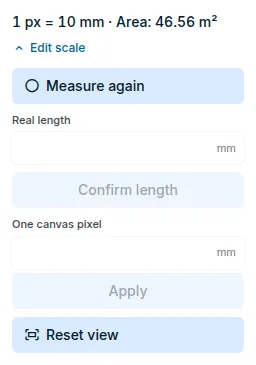
Scalecard in the left panel, clickSet scale. If a scale is already set, clickEdit scaleand thenMeasure again. - In the drawing, click the start and the end of a line whose length you know, for example a dimensioned edge. The point snaps to a corner or to the midpoint of a drawn edge; otherwise it lands exactly where you click.
- Type the length in millimetres into the
Real lengthfield and clickConfirm length.
The card then shows the measured length and the roof area. You cancel the measurement with the Esc key.
Measure the longest dimensioned length you can. A small error when clicking has the least effect on it. Compare the area in the card with the drawing.
Scale without a background
- An empty roof without a background has the default scale 1 px = 1 mm. You enter edge dimensions as numbers directly while drawing, see Drawing aids.
- You can also enter the scale as a number: in the
Scalecard, fill inOne canvas pixelin millimetres and clickApply. - When you upload a background to an empty roof, the default scale does not apply to it. Measure the background first.
Changing the scale of a drawn roof
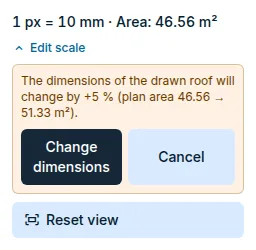
- Changing the scale changes the real dimensions of everything that is drawn.
- Before the editor makes the change, it shows by how many percent the dimensions and the area will change. You confirm the change with the
Change dimensionsbutton, or you cancel it. - Results calculated with the original scale are then no longer valid and need to be calculated again.
Where the scale is checked
- The
Stepswindow contains theSet the scalestep. When a background is uploaded but nobody has measured it, the step says that the roof is at the default scale 1 px = 1 mm. The area then does not match the drawing. - Without a scale, the application cannot calculate the area, the slope design or the drainage assessment.
Pitched roof and facade
- The pitched roof editor has the same
Scalecard and the background upload in the top bar. - For a facade, the background is uploaded the same way. Here the scale belongs to the image; the facade drawing does not change. In the
Backgroundcard, you also place the origin on the bottom left corner of the facade.
Updated