

Drawing aids
Magnet, parallel and perpendicular, 45° angles, grid and entering length and angle as numbers. The aids and keys are the same in all FredIQ editors.
Where to find the aids
- In the left panel of the editor, expand
Drawing aids. - The keys are listed in the
Shortcuts:bar below the canvas. - Your browser remembers the settings. They apply in the flat roof and pitched roof editors.
- The same applies in the facade editor.
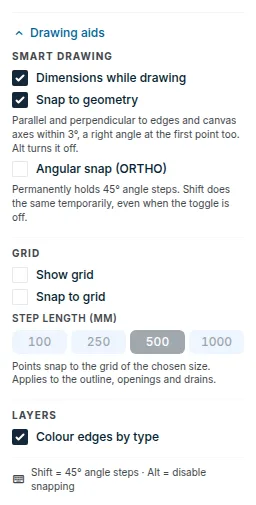
Default state: Dimensions while drawing, Snap to geometry and Colour edges by type are on. Angular snap (ORTHO), Show grid and Snap to grid are off. Step length (mm) is 500.
Smart drawing
Dimensions while drawingshows the length and angle of the edge being drawn next to the cursor, and the lengths of all edges of a selected area or opening. It only displays them and does not enter anything.Snap to geometryturns on three aids:- Magnet snaps a point to a corner or to the midpoint of an edge of a drawn area or opening. Corners take priority.
- Parallel and perpendicular: an edge whose direction differs from another edge or a canvas axis by no more than 3° is aligned exactly. A guide line is shown on the canvas.
- Right angle when closing: the last point is adjusted so that the corner at the first point is a right angle, or so that the edge continues in a straight line.
Angular snap (ORTHO)permanently keeps the edge being drawn at 45° angles.
The aids only move the point you are currently drawing. They do not change outlines that are already drawn.
Keys for the aids
Shift(hold): 45° angles just for a moment, even when ORTHO is off. The magnet is turned off meanwhile.Alt(hold): no snapping. The point lands exactly where you click.
Grid
Show grid: the grid is only displayed.Snap to grid: points of the outline, openings and drains snap to the grid.Step length (mm): the mesh size of the grid.
The two switches are independent. The grid can be visible without anything snapping to it.
Entering length and angle as numbers
- Click the first point of the outline.
- Type the length of the edge in millimetres.
Lengthappears next to the cursor. Tabswitches toAnglein degrees: 0° is right, 90° up, 180° left, 270° down. Without an angle, the edge is placed in the direction of the cursor.Enterconfirms the edge.Esccancels the entry.
Example, a 12 × 8 m rectangle: the first point, then 12000 Tab 0 Enter, 8000 Tab 90 Enter, 12000 Tab 180 Enter. Close the outline with the Enter key.
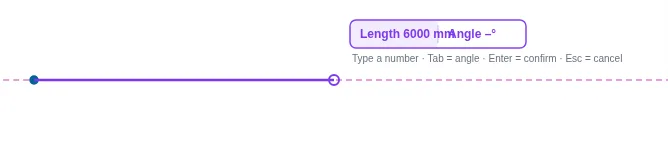
- The number you enter takes priority: neither the magnet nor the grid moves the point.
- You can draw with numbers only when the roof has a scale. An empty roof without a background has a default of 1 px = 1 mm. On a background, set the scale first, see Background and scale.
- In the flat roof editor, you place a drain by numbers in the same way: with the
Draintool, type X,Tab, Y andEnter. It is measured in millimetres from the top left corner of the rectangle enclosing the roof, X to the right and Y downwards.
Guide lines and gutters
- While you draw, the editor shows guide lines to the corners of geometry already drawn when the new point is vertically or horizontally in line with a corner.
- When you place or drag a drain, it offers alignment with the other drains.
Guttersnaps to the corners and edges of the roof. Each further gutter locks parallel or perpendicular to the first one.Altturns off both the snapping and the lock.
The editor checks the shape
- The editor does not close an outline whose edges would cross, and it explains why in the panel. Remove the last point with the
Undobutton or theBackspacekey. - Neither an opening nor a superstructure may extend beyond the outline of its area. It may touch it.
- A dragged point stays at the last valid position.
Layers
Colour edges by type colours the perimeter edges by type: free edge, parapet, wall, edge without a type. More in the guide Perimeter edge types.
Updated