

Drawing a roof
Roof outline, openings, drains and saving, shown on a flat roof. Drawing, mouse and keys are the same in the flat roof, pitched roof and facade editors.
Open the editor
- In the project cockpit, on the
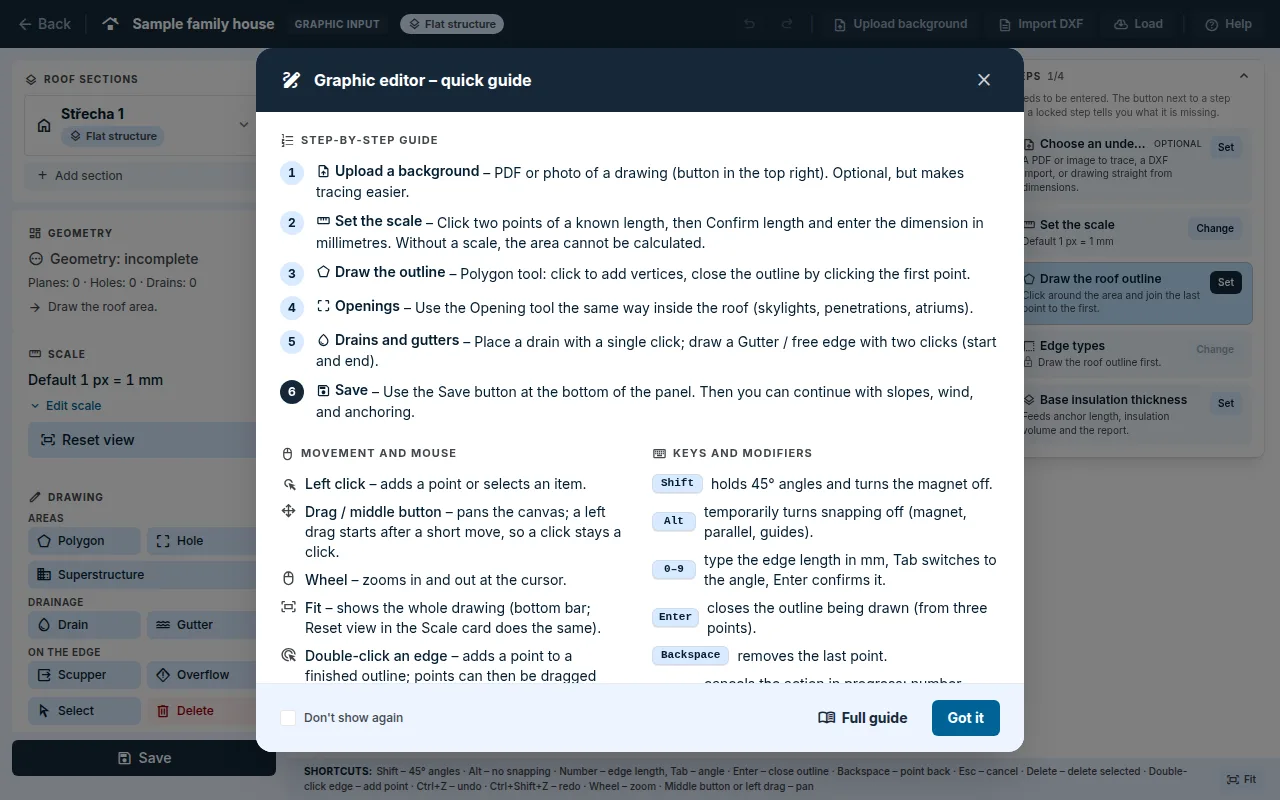
Roofstab, clickOpen editorin theGraphic editorcard. TheEditorbutton in the projects overview does the same. - On your first visit, a quick guide opens: steps, mouse and keys. Close it with the
Got itbutton. You open it again with theHelpbutton at the top right of the editor.
The editor is built for a computer with a mouse and keyboard.
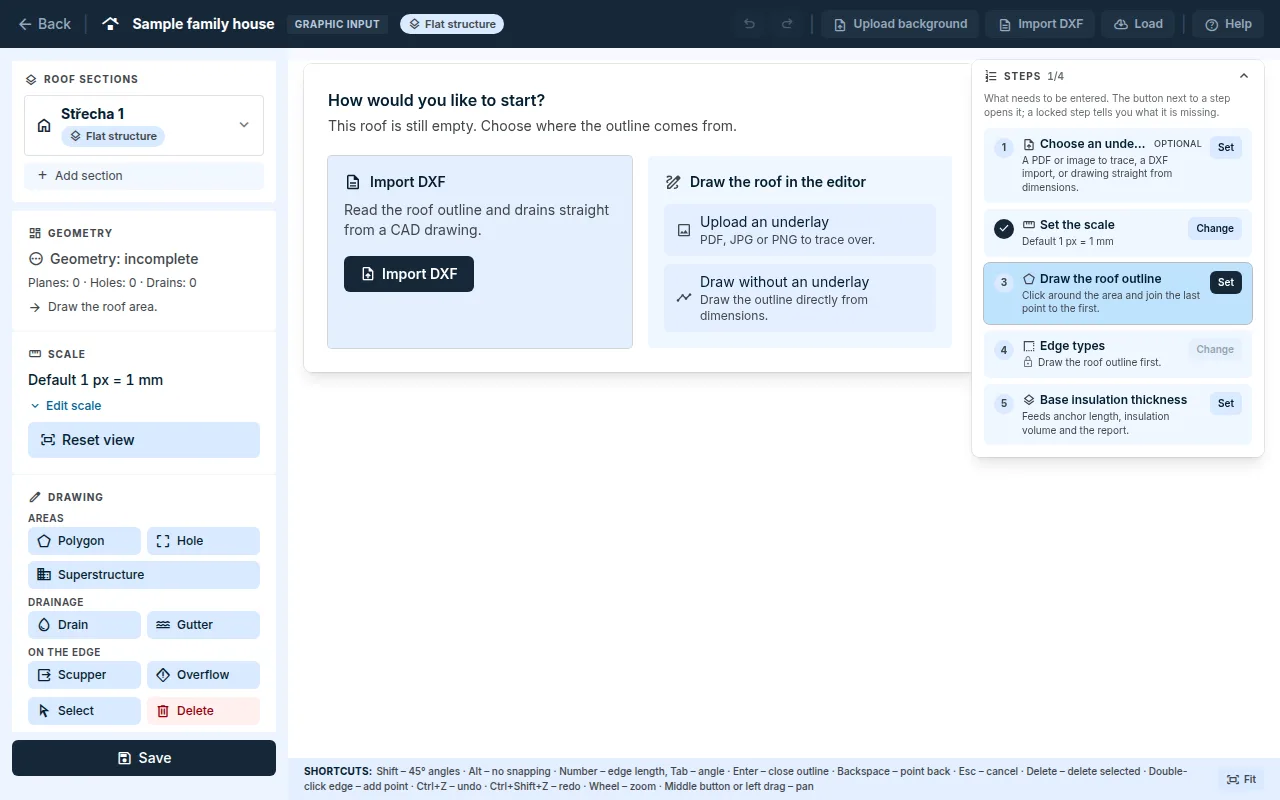
How would you like to start
An empty roof offers where to take the outline from:
Upload an underlay: a PDF, JPG or PNG of the drawing that you trace the outline from. The file can be at most 20 MB; from a PDF, the first page is used.Draw without an underlay: you draw the outline straight from dimensions.Import DXF: the roof outline and drains straight from a CAD drawing.
Scale
- With a background: in the
Scalecard, clickSet scale, then two points in the drawing whose distance you know. Enter theReal lengthin millimetres and clickConfirm length. - Without a background: the default scale 1 px = 1 mm applies. You enter edge dimensions as numbers directly while drawing.
- Without a scale, the application cannot calculate the area or anything else.
Draw the outline
- Choose the
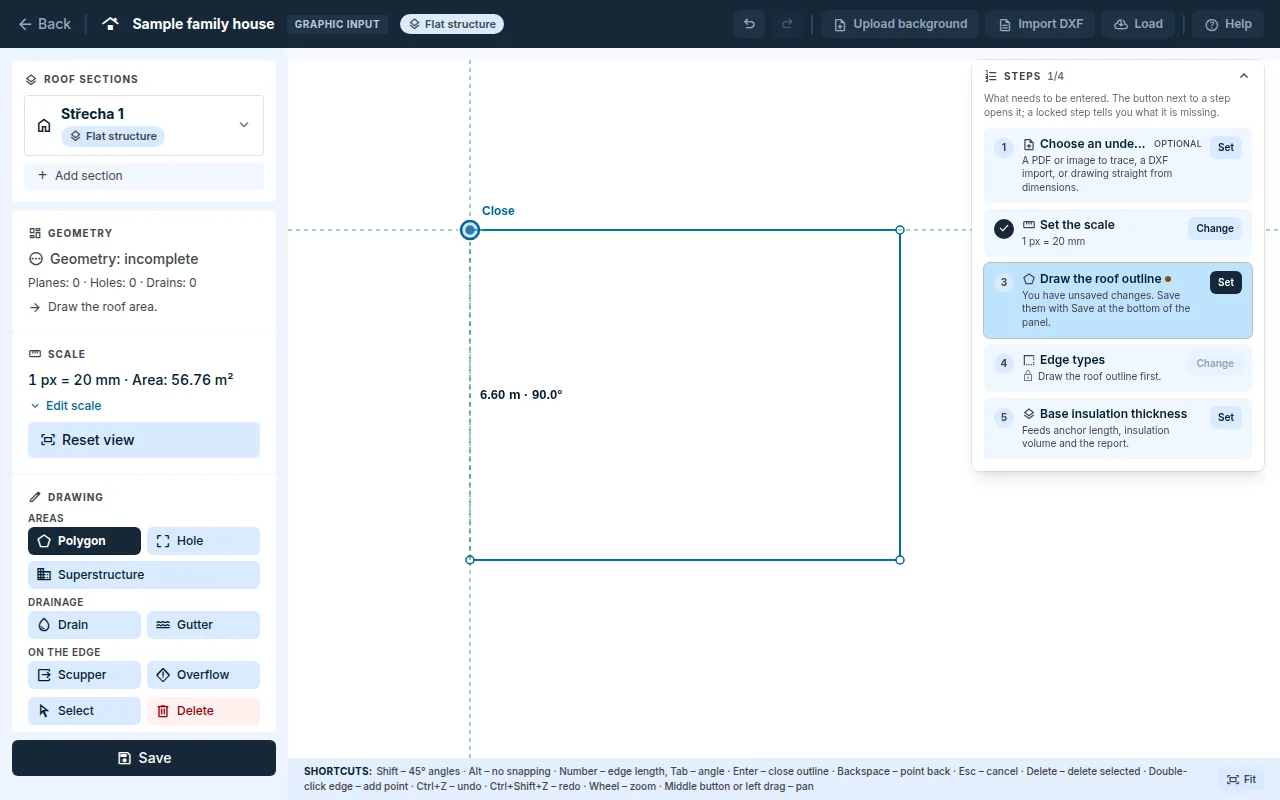
Polygontool in theDrawingpart. After choosingDraw without an underlay, it is switched on automatically. - Click to add the corners of the roof. Next to the cursor, you see the length and angle of the edge being drawn.
- You can type the length as a number: after the first point, type the length in millimetres,
Tabswitches to the angle andEnterconfirms the edge. - Close the outline by clicking the first point (
Closeappears next to the cursor), or with theEnterkey once you have at least three points. - You remove the last point with the
Backspacekey and cancel the outline being drawn with theEsckey.
Aids
- Magnet snaps a point to a corner or to the midpoint of an edge. A corner takes priority.
- Guides align an edge parallel or perpendicular to another edge and to the canvas axes when it differs from them by at most 3°. They also keep the right angle when you close the outline at the first point.
Shiftholds the angle in 45° steps and turns the magnet off.Alttemporarily turns snapping off.- You turn on the grid, the drawing step and dimensions in the
Drawing aidspart.
Openings, superstructures and drainage
Holeis a place where the roof ends: a skylight, a penetration, an atrium. It is drawn like an outline, inside the roof.Superstructureis a structure that stands on the roof. It is drawn the same way as an opening.- You place a
Drainwith one click. - You draw a
Gutter(a gutter or a free edge) with two clicks: start and end. ScupperandOverflow(emergency overflow) are placed on an edge of the outline.
Edit what you have drawn
- With the
Selecttool, click an area. You can then drag its corners, with the magnet and guides. - Double-clicking an edge adds a point.
Deletedeletes the selected point or item.Ctrl+Zundoes a step,Ctrl+Shift+Zredoes it.- The mouse wheel zooms in and out. You pan the canvas by dragging or with the middle button.
Fitin the bottom bar shows the whole drawing.
Edge types and saving
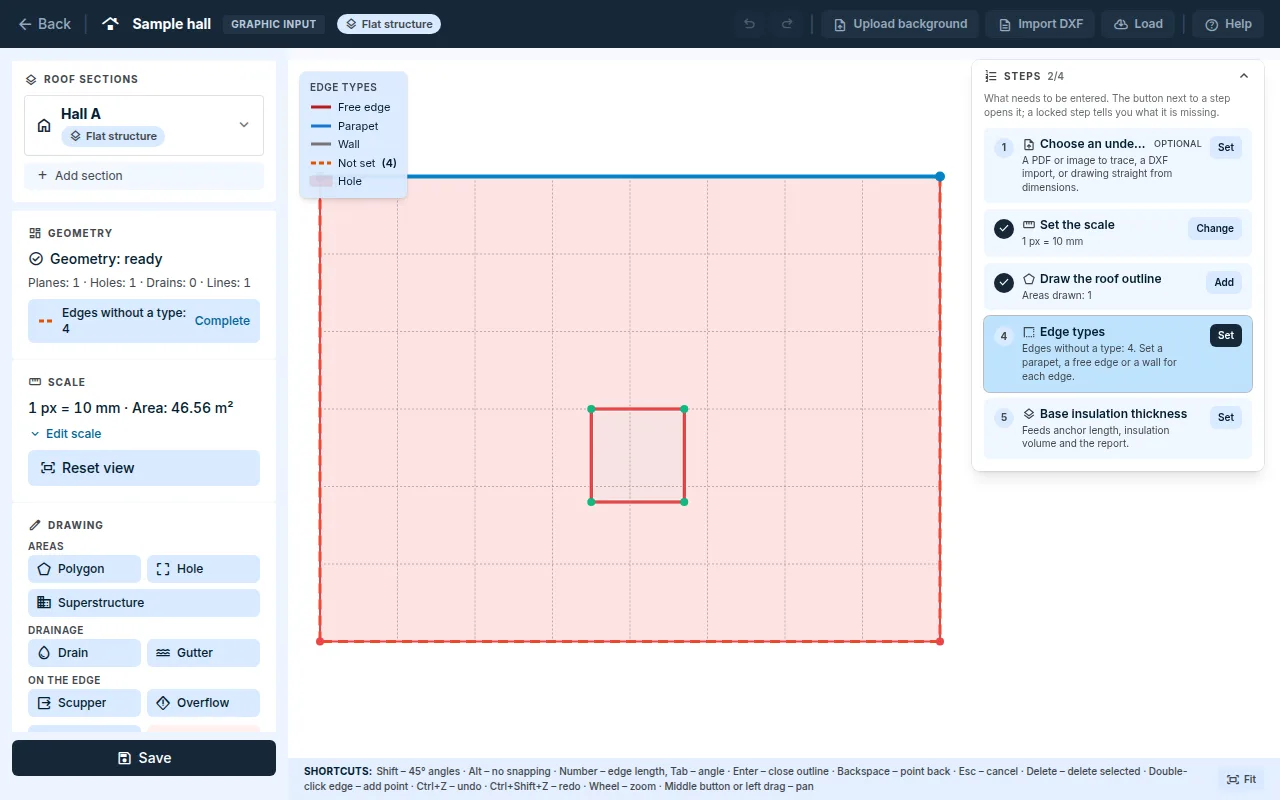
- Set the type of each perimeter edge:
Free,ParapetorWall. After you select an area, you find them in thePerimeter edgespart; faster via theEdges without a typebadge andComplete. - Fall protection and the flashing quantities need the edge type. The application never fills it in by itself.
- You save the drawing with the
Savebutton at the bottom of the left panel. TheStepswindow on the right shows what is still missing. - The browser remembers unsaved changes and loads them when you return to the editor. They are only written to the project with the
Savebutton, though.
Pitched roof and facade
The canvas, aids, mouse, keys, the Steps window and saving at the bottom of the panel are the same in all editors. Only the input differs.
- Pitched roof: in the project cockpit, the
Pitched roof editorcard.Quick setupcreates aRectangleorL-shapefootprint and the roof shape (mono-pitch, gable, hip) from a few numbers. The application works out the planes, ridge, hips and valleys. You enter a more complex roof with theBy planes (advanced)option. More in the guide Roof shape and planes. - Facade: the
Enter dimensionsstart option creates a rectangle or a gable from the width and height in millimetres; otherwise you draw the facade. A facade is divided into views and planes (A, A1, A2 …). More in the guide Facade panel layout.
Updated