

Facade panel layout
The facade as the third project type. Views and planes, openings, the building footprint, choosing the panel and format, and calculating the panel layout from the catalogue data.
The facade in FredIQ
- Create a facade as a new project: in the
New projectwindow, setRoof typetoFacade. The type cannot be changed later. A building with both a roof and cladding means two projects. - In the cockpit, a facade project has a
Facadestab instead of theRoofstab. Open the editor in theFacade surfacecard with theEnter surfacebutton, laterOpen surface. - The facade covers the panel layout and the cutting plan. FredIQ does not deal with the structural design of the facade at all: no fixing, spacing, substructure or wind load. More in the article What FredIQ does not assess.
Steps in the editor
The Steps window on the right guides you through the steps: Footprint (optional), Upload underlay, Views and planes, Openings, Panel layout and Report. The canvas, mouse and keys are the same as in the roof editors, see Drawing a roof.
Dimensions are entered in millimetres. The origin is the bottom left corner of the facade.
Views and planes
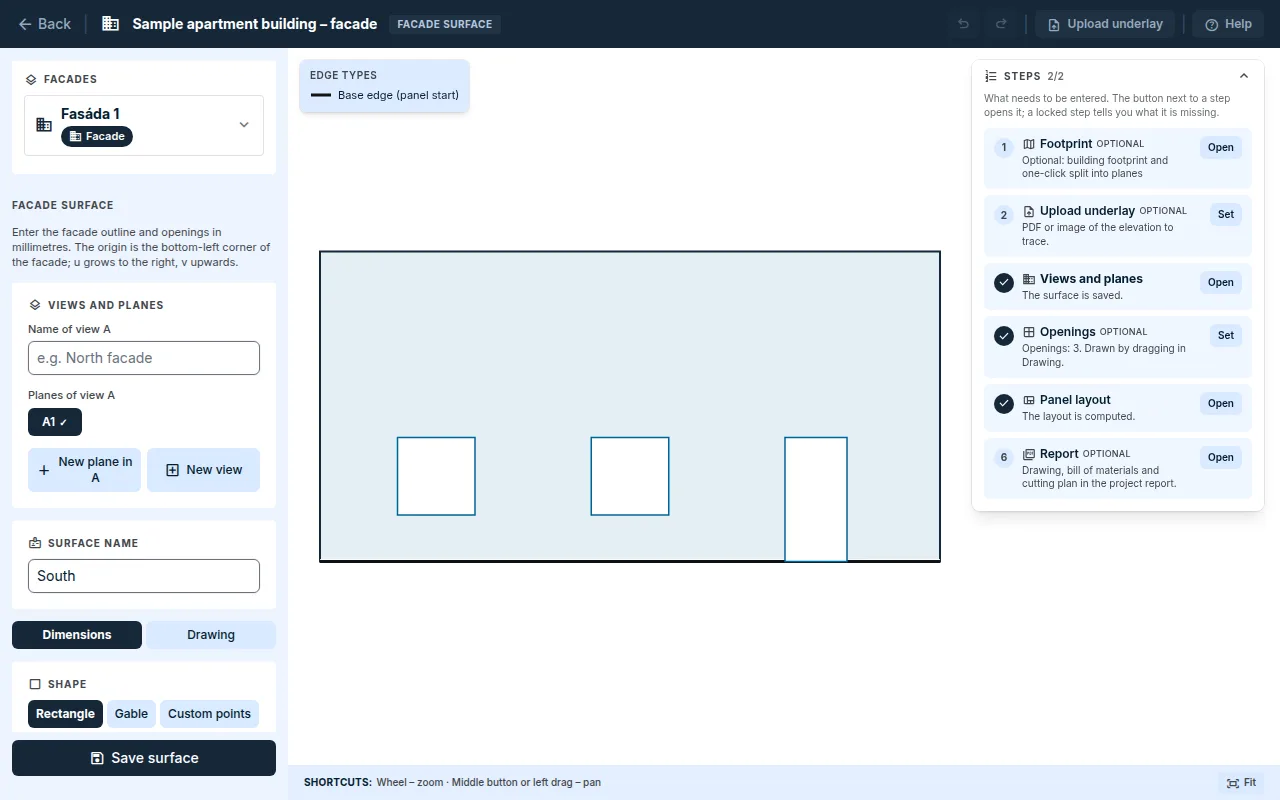
- A view is one side of the building: A, B … A plane is a continuous area of cladding in a view: A1, A2 … A view can have several planes, for example a set-back part or a projection.
- An empty facade offers the options
Enter dimensions,Upload an underlayandDraw without an underlayin theHow would you like to start?card.
- Use the
Input methodswitch to chooseDimensionsorDrawing. - For dimensions, choose the
Shape:Rectangle,GableorCustom points, and enterWidthandHeight. For a gable, alsoEave height,Ridge heightand the ridge position. - When drawing, draw the outline of the plane with the
Outlinetool. - Add another plane with the
New plane in Abutton and another side of the building with theNew viewbutton. Set the position of the plane in the view in thePosition in the viewsection. - Click
Save surface.
Openings
- In the
Openingssection, clickAdd opening. Choose theType(Window,DoororOther) and enter the positionFrom the left edgeandFrom the bottom edgeand the dimensionsWidthandHeight. - When drawing, draw an opening by dragging with the
Openingtool. Fine-tune the exact dimensions in the openings table. - An opening must lie inside the outline and must not overlap another opening.
Building footprint (optional)
The footprint is an aid from which FredIQ suggests the planes. The layout, the bill of materials and the cutting plan do not read it.
- In the
Footprintstep, draw the building perimeter with theBuilding outlinetool, with north at the top. - Enter the
Wall height including parapet. For the footprint edges, set whether each one is clad (Clad) and whether its top edge isStraightor aGable. - Add a set-back storey with the
Add levelbutton. - Click
Split into planes. Each clad edge becomes a plane, and the planes are grouped into views by compass direction. - The proposal opens in the
Views and planesstep and only takes effect once you save it.
The Footprint and 3D window shows the planes in plan and in 3D, with the openings and the panel joints.
Background
- Use the
Upload underlaybutton in the header to upload a PDF, PNG or JPG of the view. The background belongs to a saved plane. - In the
Scalecard, measure a known length. Then clickSet originand the bottom left corner of the facade in the drawing. - The background is only for tracing. It does not change the surface, the layout or the protocol.
Panel layout
- Open the
Panel layoutstep. ThePanel layoutcard on theCalculationstab and itsChoose panelbutton work the same way. - Choose the
Paneland theFormat. A format that the catalogue allows to be rotated can be rotated with theRotate the format by 90°option. One panel and one format apply to the whole facade. - Choose the
Default vertical grid:Symmetric from the centre line,From the bottom left cornerorFrom the bottom right corner. A plane can have its own choice. Zero level of the rowsis the height from which the horizontal joints of the whole facade are laid out. An empty field means the bottom edge of the lowest plane.- Click
Calculate layout.
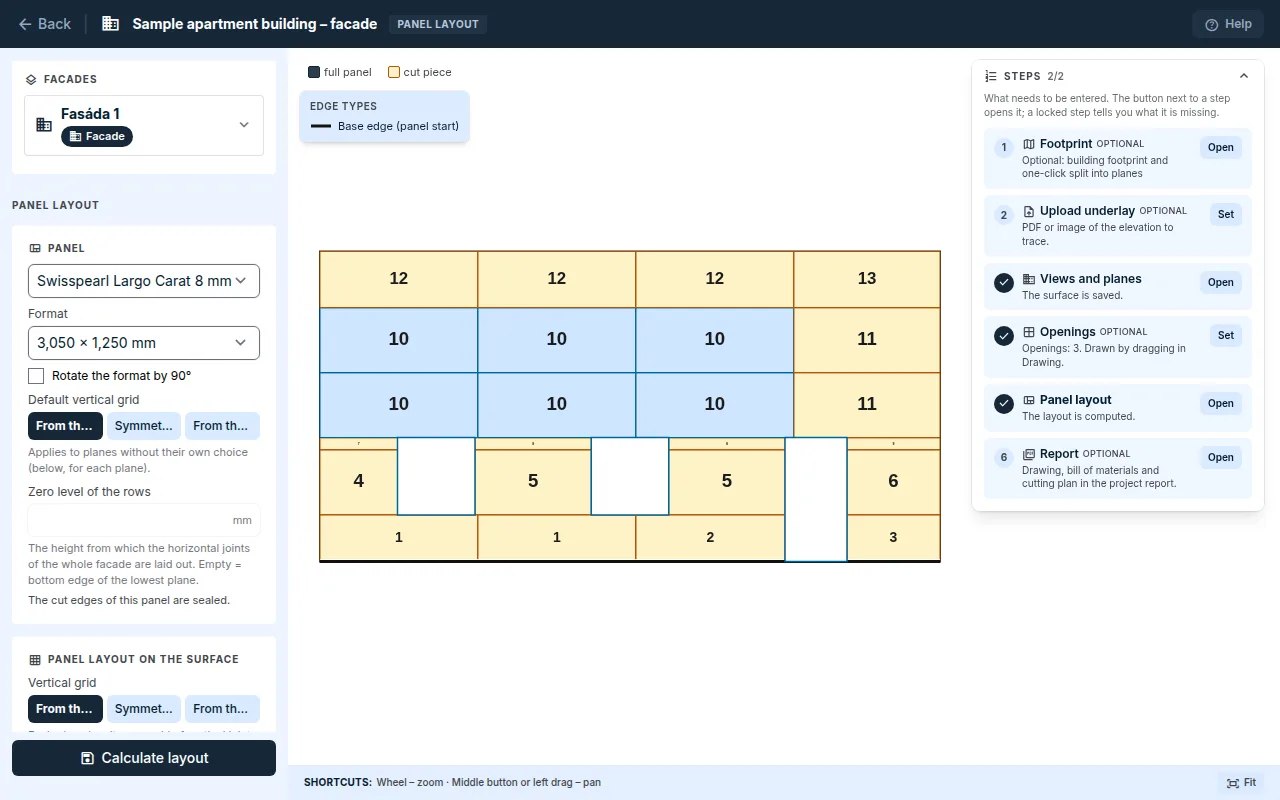
The layout is calculated from the saved planes. After the surface changes, it is recalculated automatically.
How FredIQ lays out the panels
- Rectangular pieces only. Around an opening, the grid breaks at the reveal, the sill and the lintel.
- Continuous joints, vertical and horizontal. The horizontal joints lie at one height across the whole facade.
- No piece below the minimum panel size. Instead, the whole row or the grid is shifted.
- Format, joint and minimum piece according to the panel data in the catalogue.
- Panels do not continue around a corner: each plane has its own grid.
For a directional panel and for a panel whose cut edges are sealed, the application reminds you of this below the panel selection.
Warnings
Where the minimum piece cannot be kept, the piece stays and the layout is not discarded. The Warnings section shows the plane and the size, for example a band lower than the minimum piece or a narrow edge column. Warnings do not block the layout. A different format, a different grid start, a different zero level of the rows or an adjustment of the plane can help.
The pieces to order and the cutting are described in the guide Cutting plan.
Updated