

Site drawing
The tapered wedge and substrate board plan for the site. A large-format print from a released revision and a link with a QR code that the site manager opens on a phone without signing in.
When you have a site drawing
- The site drawing is available for a flat roof with calculated slopes, that is, with a tapered wedge plan. A hall with a sloped deck, which has no wedges, does not have one.
- It is created from a released revision of the document for the insulation supplier. It is not printed from a project in progress.
- A released revision does not change. Later edits to the project do not change the drawing. For a changed design, release a new revision.
1. Release a revision of the document
- In the project cockpit, open the
Protocolstab. - In the
Documents for supplierspart, find theThermal insulation and slope wedgescard. - In the
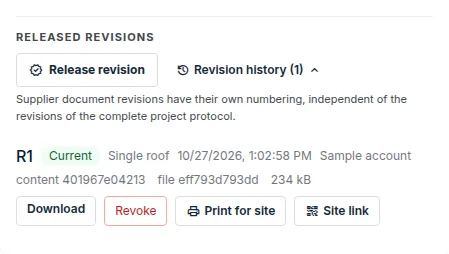
Released revisionspart, clickRelease revisionand confirm withRelease. The revision gets the number R1, R2 … - Expand
Revision history. Each revision has thePrint for siteandSite linkbuttons.
2. Print for site
- Next to the revision, click
Print for site. - Choose the
Content:Wedge plan,Substrate board planorBoth. - Choose the
Format: A1, A0 orA3 tiled sheets. The A3 sheets overlap and you also get a sheet key. - Leave the
ScaleatAutomatic, or choose 1 : 50 or 1 : 100. Below the options you can see whether the roof fits on one sheet, how many A3 sheets there will be, or that it does not fit. - Select the
Layers: wedge colours and marks, fall arrows, grid numbers, dimensions and the drawing underlay (only if the revision has one for the roof). - Click
Download PDF.
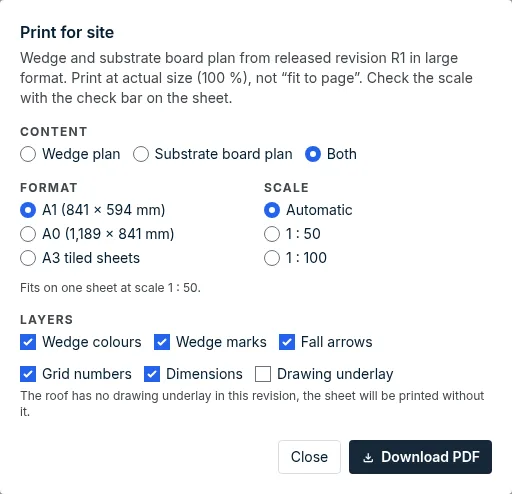
Print at actual size (100 %), not “fit to page”. Check the scale with the check bar on the sheet.
Each sheet carries a title block with the revision and the release date. A design that is not yet ready for construction carries a notice on every sheet. An older revision is printed with a notice that a newer revision applies on site. A revoked revision cannot be printed.
3. Link and QR code for the phone
- When a revision is released, a link
frediq.app/stavba/…is created. Its QR code is in the released PDF on the title page and next to the wedge and board plans. Just scan it on site. - Next to the revision, click
Site link. You see the address, how many times and when the link was opened, and theCopy linkandShow QRbuttons, plusShareon a phone. - Anyone who receives the link can open it without signing in. It shows only the drawing, the roof name, the revision and the company that prepared it. It does not show the project name, the site address, the client or prices.
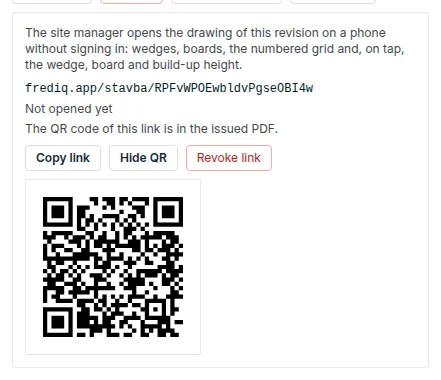
Revoke the link
Revoke linkdisables the link permanently, including the QR code in the printed PDF of this revision. The PDF is not regenerated.- Need a new QR code in the PDF? Release a new revision.
- A revision without a valid link offers
Create site link. Such a link is not in the released PDF; you share it electronically only.
4. The drawing on a phone
- Scan the QR code from the printed PDF, or open the shared link.
- Use the
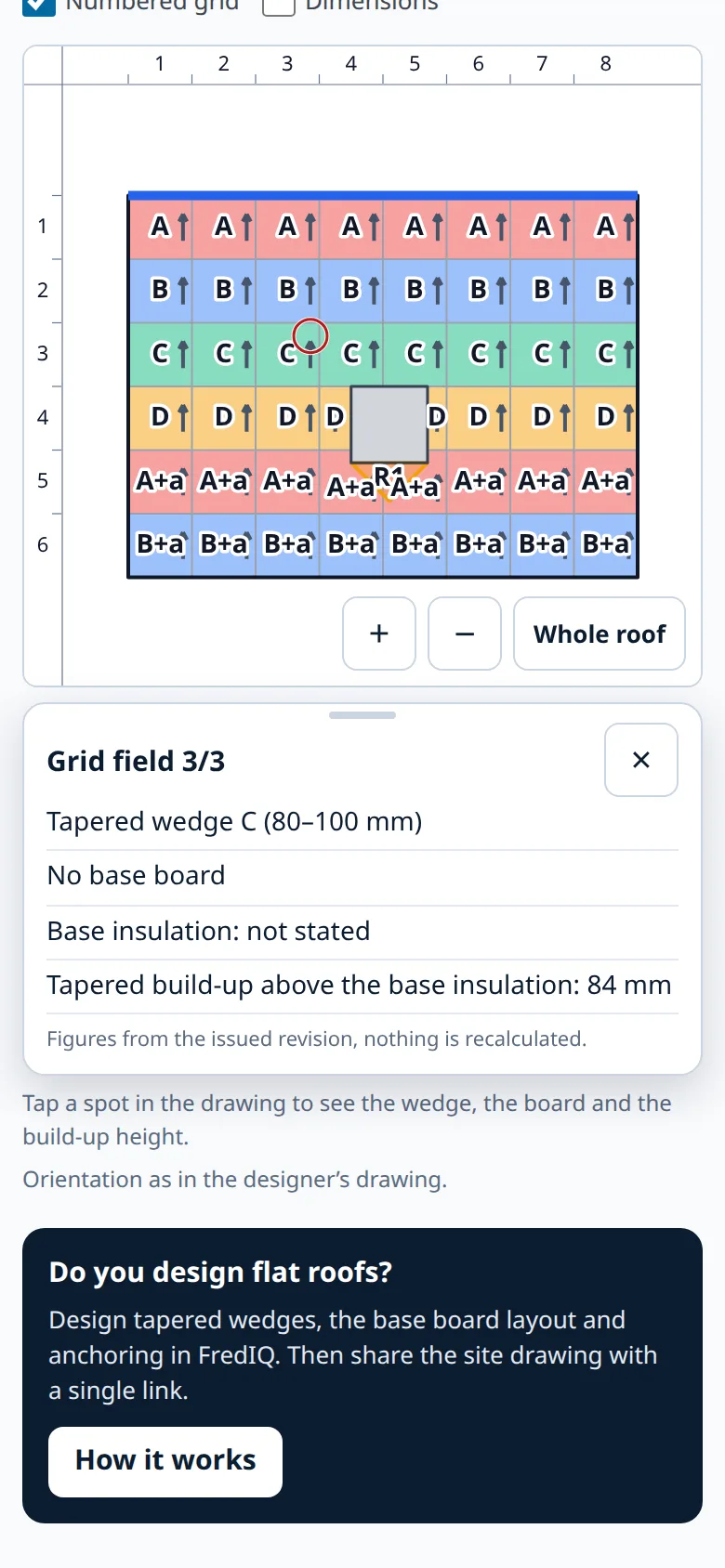
Wedges/Boardsswitch to choose the plan. Switch layers on by ticking them:Wedge colours,Marks,Fall arrows,Numbered grid,Dimensions. - Zoom with your fingers or with the
+and−buttons.Whole roofshows the whole drawing. - Tap a spot in the drawing. A card shows the grid field, the tapered wedge, the substrate board and the build-up height.
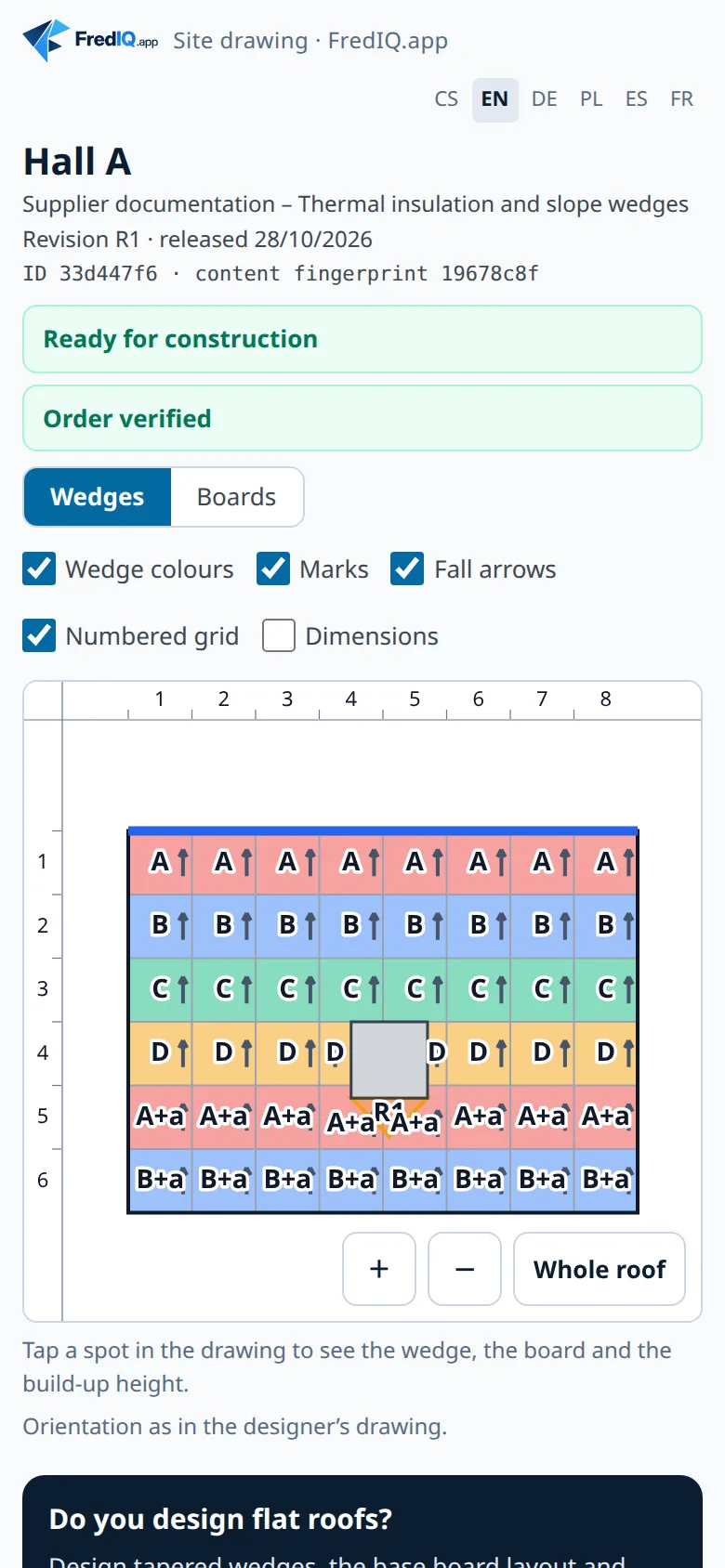
- The page is available in Czech, English, German, Polish, Spanish and French. Switch the language at the top.
- When the author releases a newer revision, the drawing points this out. It offers a link to it only if the author shares one. A revision that the author has revoked is not shown by the drawing.
The drawing shows the stored data of the released revision and recalculates nothing. The limits of FredIQ outputs are described in the article What FredIQ does not assess.
Updated