

Getting started with FredIQ
From registration to your first project. Registration, account activation, the trial and creating a project.
1. Registration
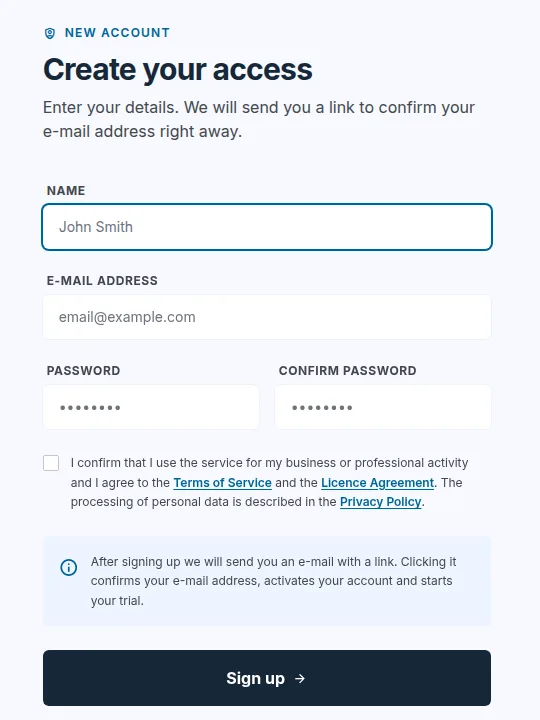
- Open the registration page.
- Fill in
Name,E-mail address,PasswordandConfirm password. - Tick the consent box. FredIQ is a service for businesses: you confirm that you use it for your business or profession, and you agree to the Terms of Service and the Licence Agreement.
- Click
Sign up.
Registration also creates a company for you. You are its owner and can invite colleagues to it later. You add the company's billing details in your profile.
2. Account activation
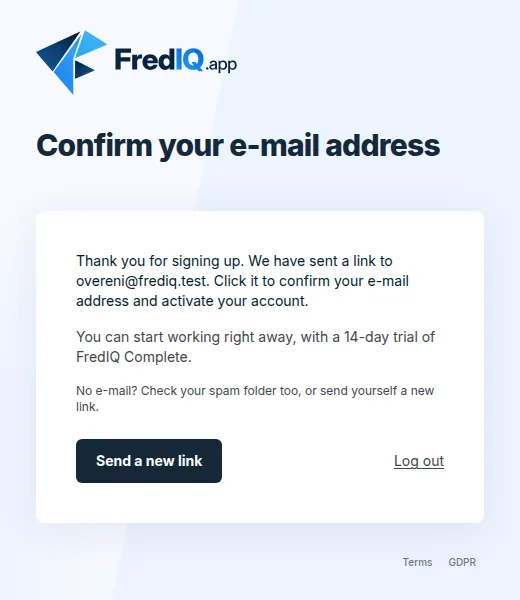
- You will receive an e-mail with a link at the address you entered. The link is valid for 24 hours.
- Click the link. This confirms your e-mail address, activates your account and starts the trial.
- No e-mail? Check your spam folder, or click
Send a new linkon theConfirm your e-mail addresspage.
3. Trial
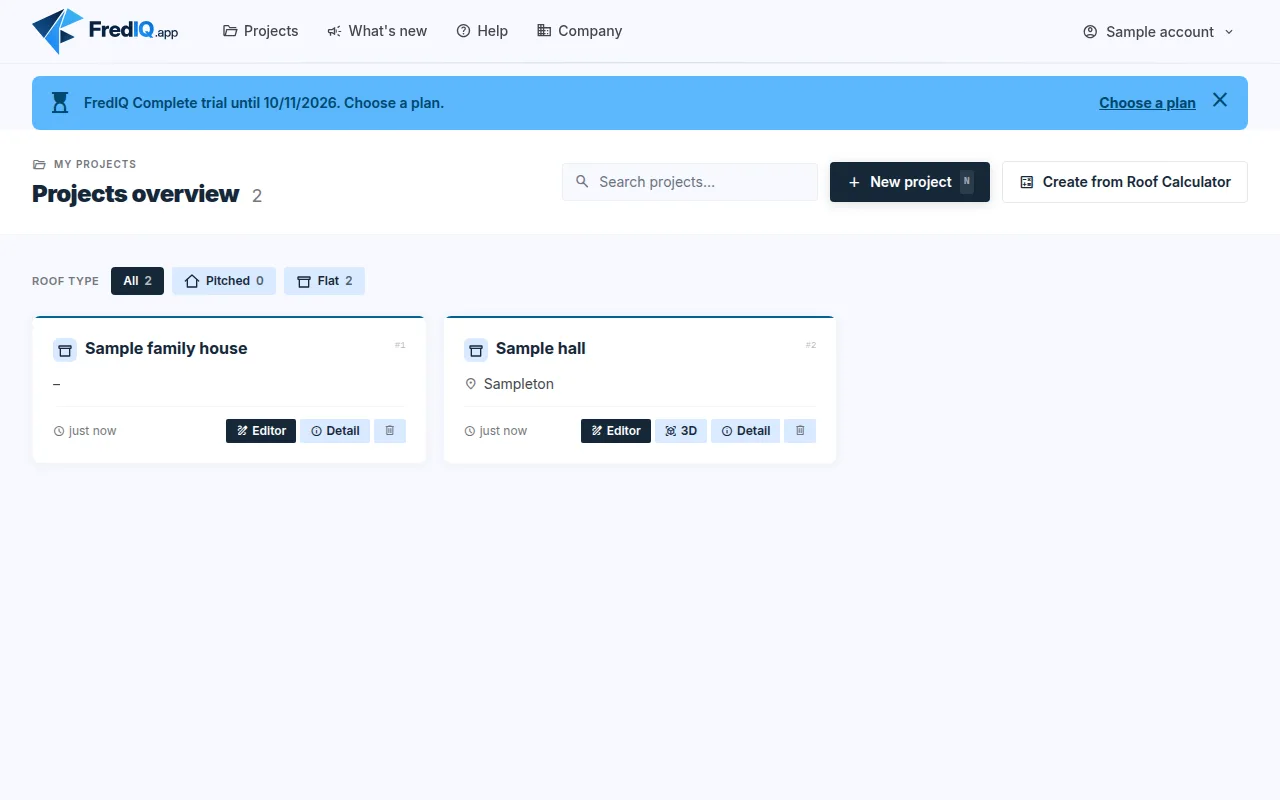
Once your account is activated, the FredIQ Complete trial starts. During the trial you can create all project types.
- The bar at the top of the application shows when the trial ends.
- The
Choose a planbutton takes you to the Subscription page. It lists the plans and their prices. - The Trial guide describes the details.
4. Your first project
- In the project overview, click
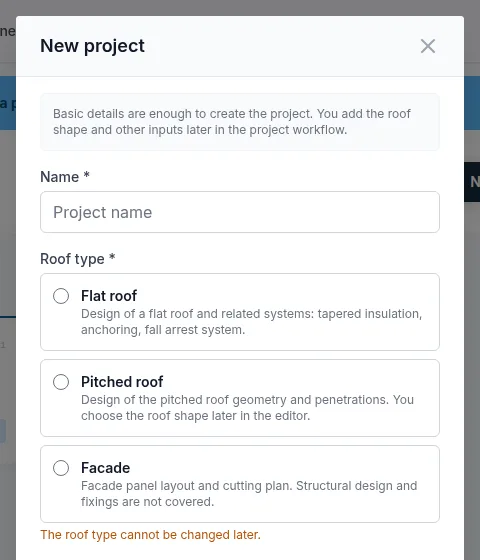
New projectat the top right. TheNkey does the same. - Fill in
Name. - Choose the
Roof type. It cannot be changed later: a building with both a flat and a pitched roof is entered as two projects. - For a flat roof, select the
Structural deck type:Level deckorSloped deck (hall). - The town, address and client details are optional. Click
Save.
Do you have a calculation from Roof Calculator? Create a project from it with the
Create from Roof Calculatorbutton in the project overview. More in the Project from Roof Calculator guide.
5. Project cockpit
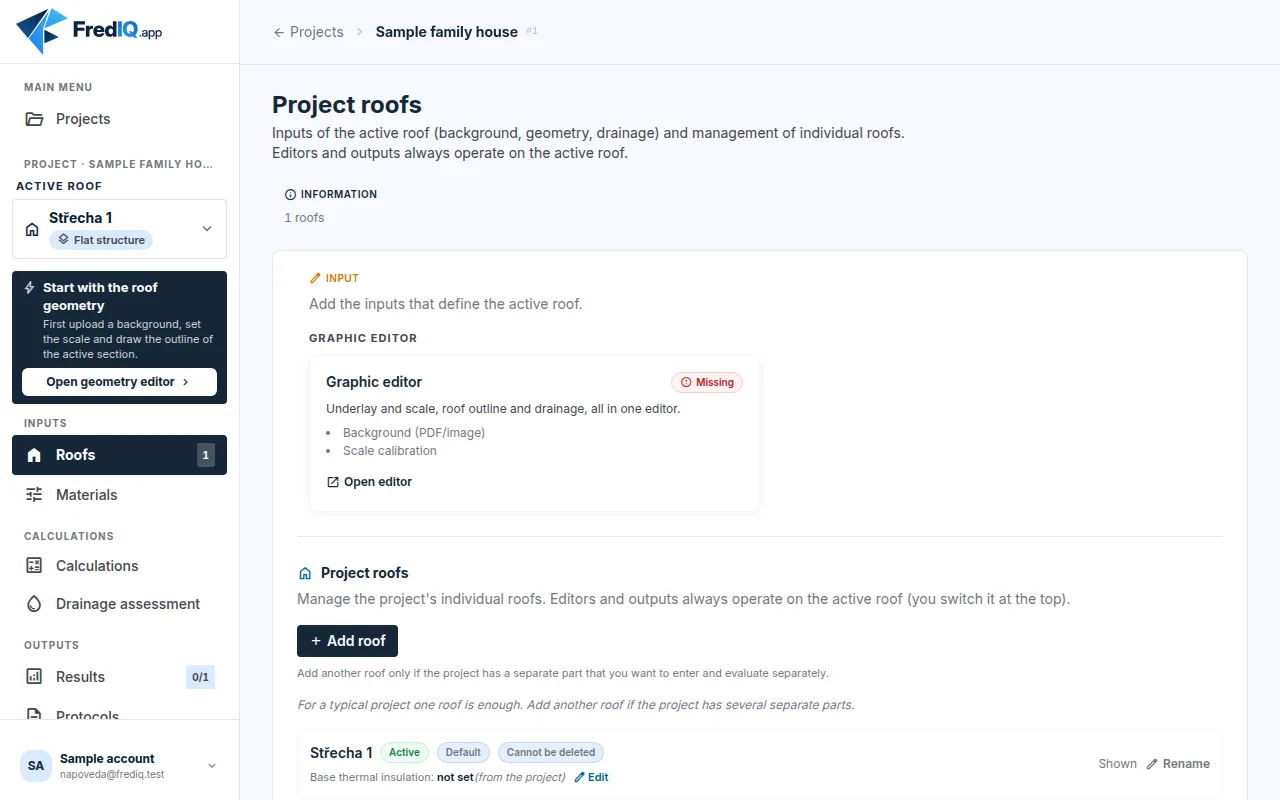
After saving, the project cockpit opens on the Roofs tab. The project has one roof, Střecha 1.
- On the left are the tabs, in the groups
Inputs,Calculations,OutputsandAdministration. Tabs that make no sense for the given roof are not shown. - Continue with the
Graphic editorcard and theOpen editorlink. The Drawing a roof guide describes how to draw. - The dark box at the top left suggests what to do next.
Company and colleagues
- The
Companylink in the top bar leads to the company settings. - The company owner adds a colleague in the
Add a person to the companysection: they fill in the name and e-mail and clickSend invitation. The colleague sets their own password from the e-mail. - Projects you create in the company can be viewed and edited by the other people in the company. People outside the company cannot see them.
- In a company with several people, the project overview offers a
Mine/Whole companyswitch.
More in the Your company and its people guide.
Good to know
- You change the application language in the account menu: click your name at the top right,
Languagesection. - You can secure your sign-in with two-factor authentication: account menu,
Profile,Two-factor authentication. - News is under the
What's newlink in the top bar, and this help under theHelplink.
Updated