

Your company and its people
How the company owner invites a colleague, what a company member sees and may do, how projects are shared in the company and what happens when someone leaves the company.
The company and its owner
- By registering, you create a company and you are its owner.
- The owner invites colleagues to the company, manages them, orders the subscription and manages the company's billing details and logo.
- The subscription applies to the whole company. There is no charge per person.
- Open the company settings with the
Companylink in the top bar.
Inviting a colleague
- Click
Companyin the top bar. ThePeople in the companypage opens. - In the
Add a person to the companysection, fill inNameandE-mail. - Click
Send invitation.
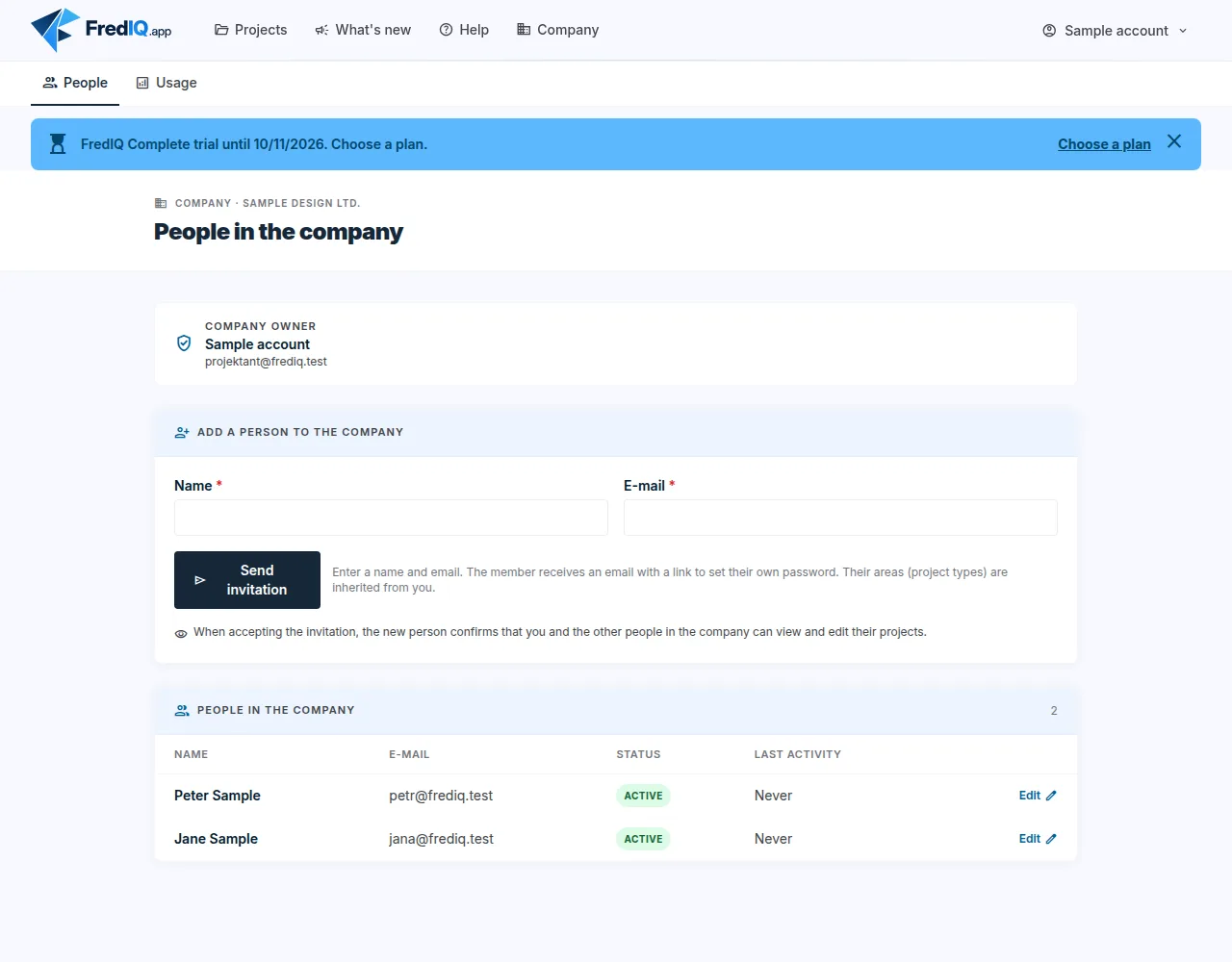
- You can only invite an e-mail address that does not yet have a FredIQ account.
- The colleague receives an e-mail with a link. The link is valid for 7 days.
- The e-mail did not arrive, or the link has expired? Click
Editnext to the colleague and thenResend invitation.
What the invited colleague does
- Opens the link from the e-mail.
- Sets their own password.
- Reads how the company works with projects, ticks “I acknowledge how the company works with projects.” and the consent to the Terms of Service.
- Clicks
Reset passwordand signs in.
Projects in the company
- Projects you create in the company can be viewed and edited by everyone in the company. You can view and edit their projects.
- People outside the company cannot see your projects.
- The project overview offers a
Mine/Whole companyswitch. A colleague's project shows its author. - A project may be deleted by its author. The company owner may also delete a member's project.
- Projects belong to the company. When a member leaves the company, their projects pass to the owner.
What a company member does not do
- Does not invite other people to the company.
- Does not order the subscription. On the Subscription page they see “The subscription is requested by the company owner.”
- Does not change the company's billing details or logo.
- The
Companylink shows them the company's usage statistics.
Managing members
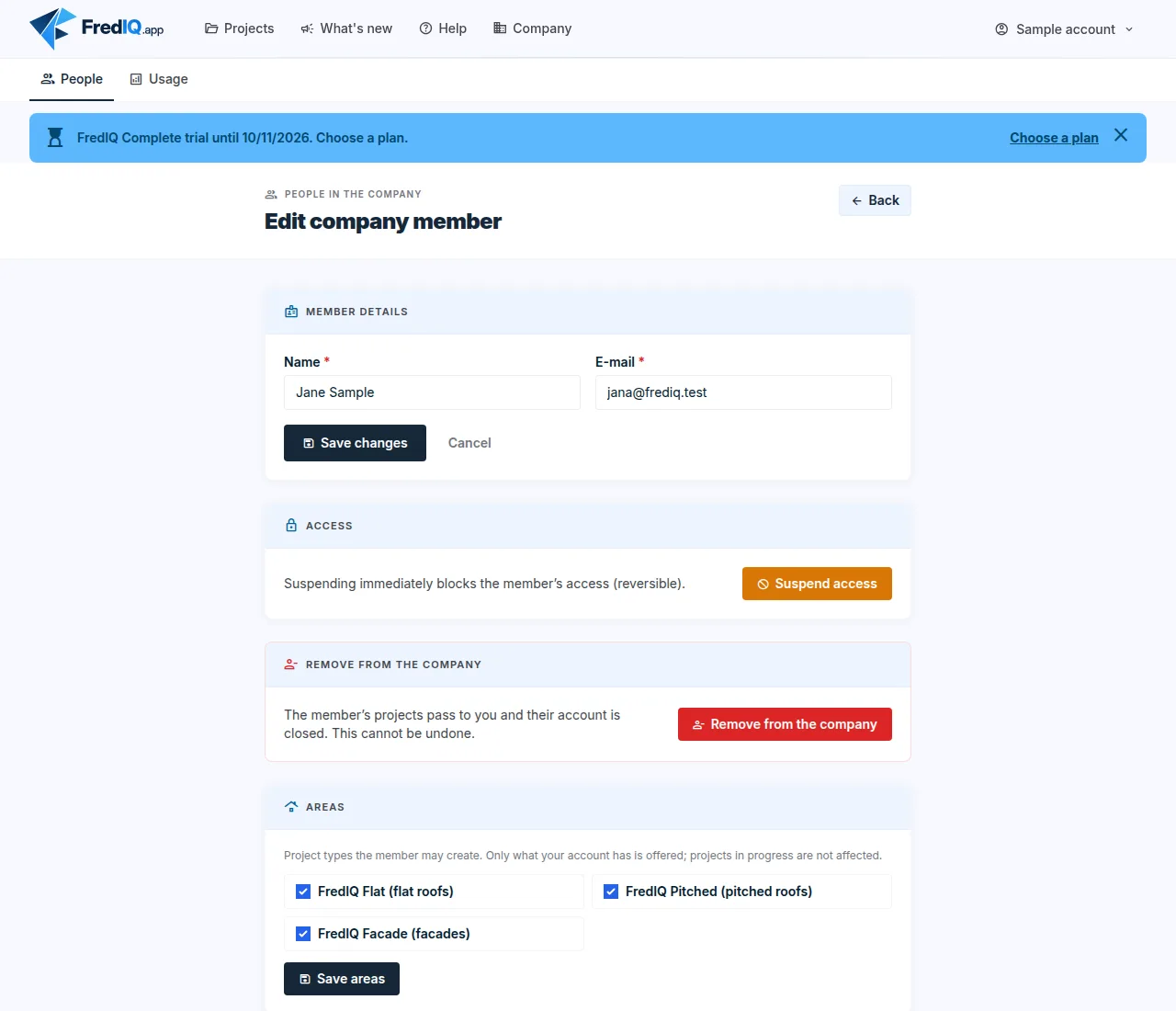
On the People in the company page, click Edit next to a member.
Member details: name and e-mail. The e-mail can only be changed until the invitation is accepted; after that, the member changes it themselves in their profile.Suspend access: the member cannot sign in until you restore access with theRestore accessbutton.Areas: the project types the member may create. For a member, you can only remove some of the types the company has. Save the change with theSave areasbutton. This does not stop projects in progress.Remove from the company: the member's projects pass to you and their account is closed. This action cannot be undone.
Leaving the company
- A member who closes their own account hands their projects over to the company owner.
- The company owner can close their account only when nobody else is in the company. First they remove the people, and their projects pass to the owner.
Usage
The Usage link in the company settings shows by month what happened in the company: activities, the most active people and the most active projects. Download the overview with the CSV button.
Updated