

Roof covering
Choosing a pitched roof covering from the catalogue, the pitch assessment on each plane, the site conditions and the piece layout on the planes.
Open the Covering module
Covering works over the saved roof from the pitched roof editor. Without a saved roof shape there is nothing to assess, see Roof shape and planes.
- In the project cockpit, on the
Calculationstab, clickPick a coveringin theCoveringcard. When a covering is already chosen, the button is calledOpen covering. - From the pitched roof editor, the
Open coveringbutton in theDonestep takes you to Covering. - The shape, footprint and openings are not changed in Covering. The
Edit roofbutton in the header takes you back to the editor.
1. Choose a covering
- Above the selection is a row of manufacturer logos. Click a logo to narrow the list to one manufacturer.
Allshows the whole catalogue. - Choose the covering in the
Covering from the cataloguefield. The list is grouped by manufacturer. - The application assesses the covering straight away and calculates the take-off.
If you click a manufacturer other than the one of the chosen covering, the covering choice is cleared and the take-off disappears. It is calculated again once you choose a new covering.
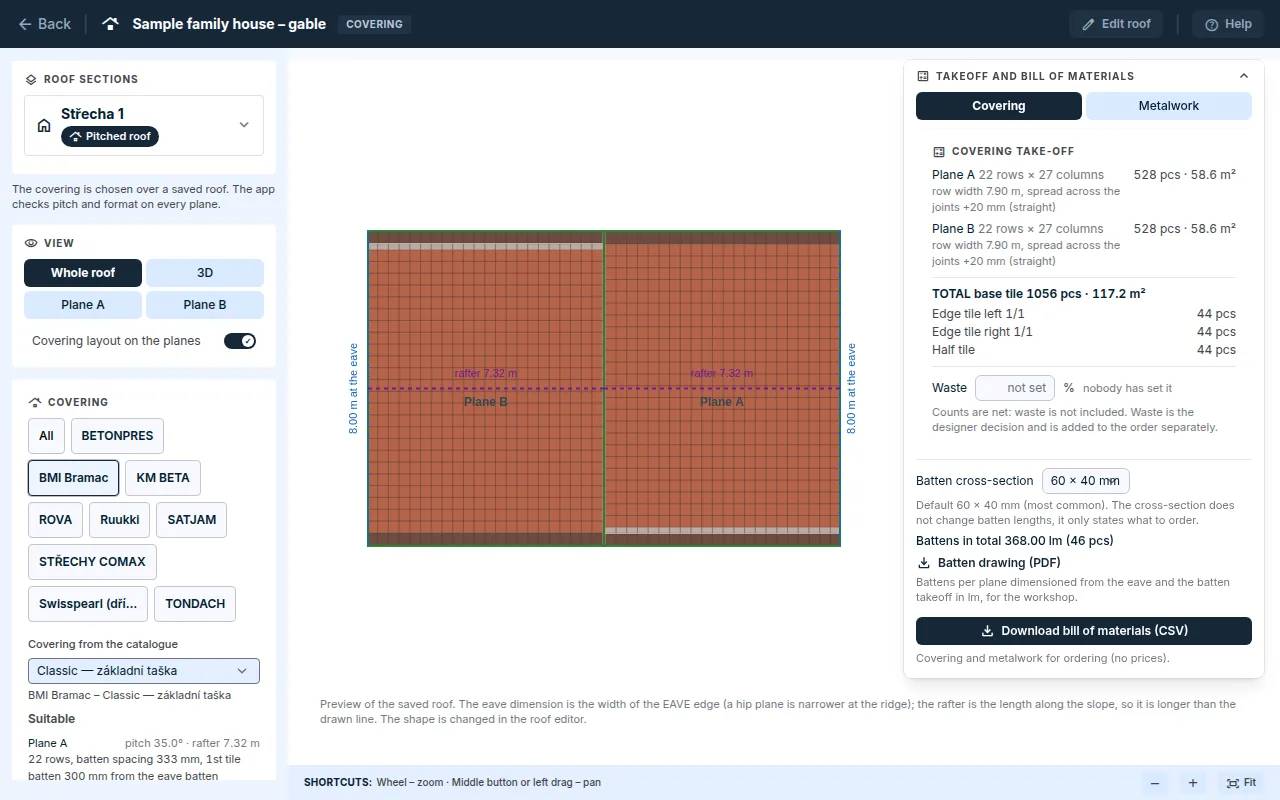
2. Assessment
Below the selection is the assessment for the whole roof and for each plane, with the pitch and the rafter length:
Suitable: the covering passes on the plane.Suitable with a condition: the pitch is below the safe pitch of the covering. The covering can only be used with additional measures.Cannot be used: the reason is shown for the plane, for example a pitch below the minimum the manufacturer allows.
The minimum and safe pitch and other limits are the manufacturer's data from the catalogue. The assessment is not an expert assessment of the building, see What FredIQ does not assess.
3. Site conditions
Depending on the covering, further options are offered below the selection. They belong to the project; changing the covering does not delete them.
Climate zoneK1 to K3: for a covering whose manufacturer sets the permitted and safe pitch by zone. Without a chosen zone, such a covering is not assessed.Covering fixing: when the manufacturer allows more than one method, for example hooks, or nails and a storm clip. The default is the method the manufacturer recommends.Windy site: for a covering for which the manufacturer requires denser fixing along the edges.
The options change both the assessment and the fixings in the take-off.
4. View
- In the
Viewpanel, you switch betweenWhole roof,3Dand the sheet of an individual plane (Plane A,Plane B…). - A plane sheet shows the plane in its true shape with the piece layout: whole and cut pieces, edge tiles, and for sheet metal the sheets and their marks.
- The
Covering layout on the planesswitch also draws the pieces in the whole-roof overview. - Zoom with the mouse wheel, drag to pan, and drag to rotate in 3D. Clicking a plane opens its sheet.
When the catalogue changes
- If the covering changes in the catalogue after your choice, Covering reports it and the take-off is not recalculated. Check the parameters and click
Confirm against the current catalogue. - A covering withdrawn from the range stays selected, but the application warns you to choose another one for ordering.
What next
- You will find the covering take-off, fixings, sheet-metal work and the bill of materials download in the
Takeoff and bill of materialswindow on the right. They are described in the guide Covering and sheet-metal schedule. - Battens and their options are described in the guide Battens.
Updated