

Projects overview
Status and material on the project card, search, filters and sorting. How to archive a project, delete it and restore it from the trash.
The projects overview is the first page after you sign in. You get back to it with the Projects link in the top bar.
1. Project card
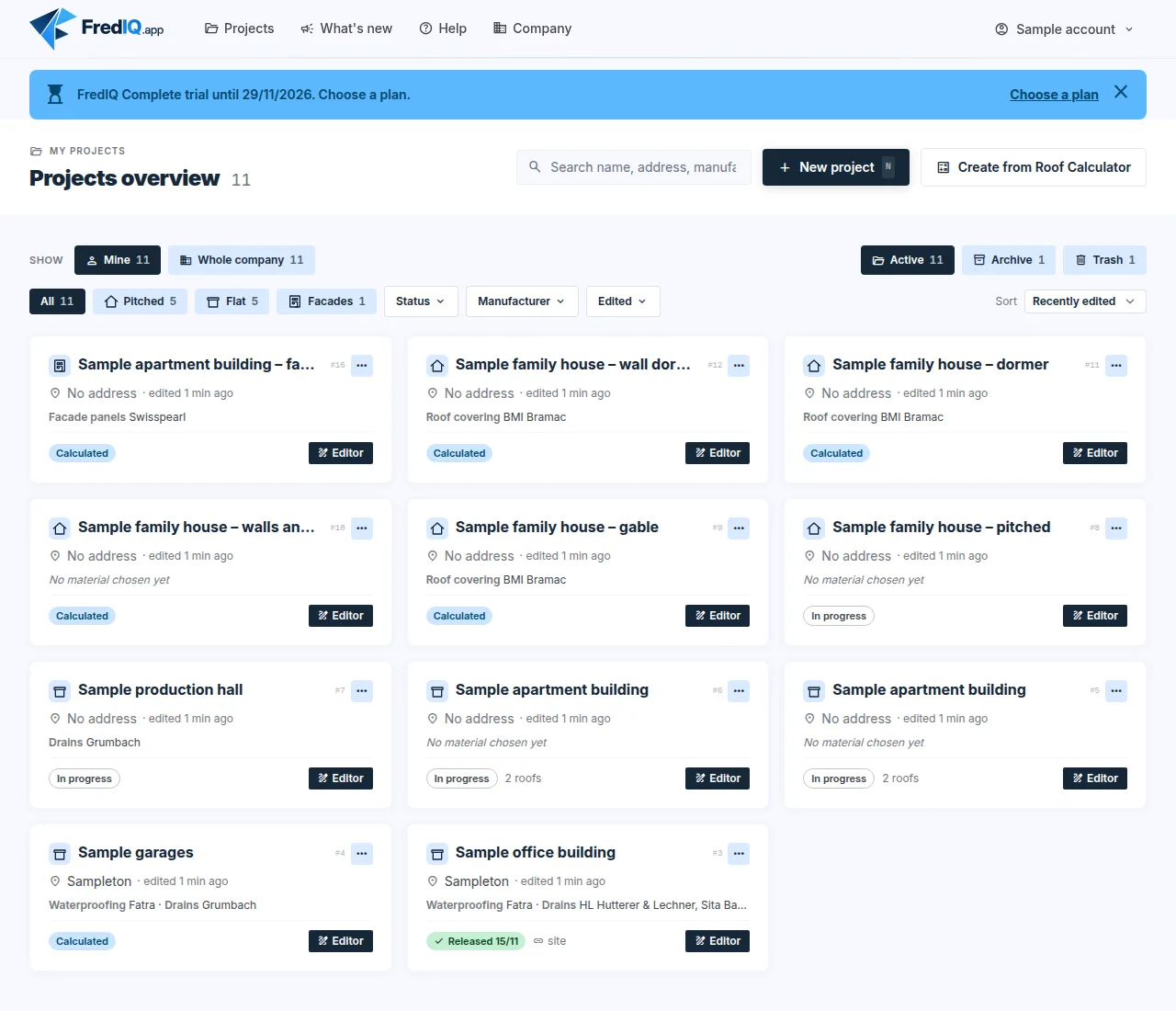
- Clicking anywhere on the card opens the project cockpit. The
Editorbutton opens the editor directly. - The card shows the project type and name, its number, the location and when someone last worked on it. Drawing, calculations, materials and releasing a revision all count.
- Below that is the material and its manufacturer, for example waterproofing and drains. Hover over the line with the mouse to see the products.
- At the bottom is the project status:
In progress(no roof is calculated),1 of 2 calculated(some of the roofs are calculated),Calculated(all roofs are calculated), orReleasedwith the date of the latest released revision. - A released project with a site link also shows
sitenext to the status and how many times someone has opened the link. - The
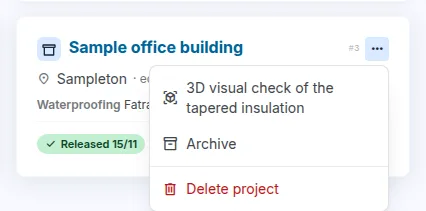
⋯menu at the top right has3D visual check of the tapered insulation(when the tapered insulation is calculated),ArchiveandDelete project.
2. Find a project
- The search field at the top right searches the name, address, project number, author, manufacturer and product. Accents and capital letters do not matter.
- The
All,PitchedandFlatbuttons above the cards choose the project type. If you have a facade project,Facadesis added. - The
Status,ManufacturerandEditedfilters, and in theWhole companyview alsoAuthor, narrow the list. The number next to an option says how many projects remain once you choose it.Calculatedalso includes partly calculated projects. Sortchanges the order:Recently edited,NewestorName A–Z.- The chosen filters appear below them as tags. The cross removes one filter,
Clear filtersremoves them all. - The overview shows 30 projects. The
Show morebutton below the cards adds more. - Filters and sorting stay after you reload the page. You can bookmark the page address in your browser.
- On a phone, the project type, the filters and the sorting are behind the
Filtersbutton. The number on the button says how many filters are selected.
3. Archive a project
The archive is for projects you no longer want in the overview, for example finished ones. Nothing is deleted.
- On the project card, click
⋯. - Choose
Archive. The project disappears from the overview. - You find archived projects with the
Archiveswitch on the right above the cards. TheActiveswitch takes you back to the overview.
- You can also archive in the project cockpit on the
Settingstab, in theArchivecard. - You can still open and edit an archived project. In the cockpit it has the bar “This project is archived” at the top.
- You bring it back with the
Unarchivebutton on its card in the Archive, in the bar in the cockpit or in theArchivecard on theSettingstab. - The archive applies to the whole company. Colleagues also find the archived project in the Archive.
- A project with a released revision can be archived too. The site link stays valid.
4. Delete a project and restore it from the trash
- On the project card, click
⋯and chooseDelete project. - Confirm with
Deletein the window. If you only want the project out of the overview, chooseArchivein the window instead. - The project moves to the trash. The message at the top offers
Restorein case it was a mistake.
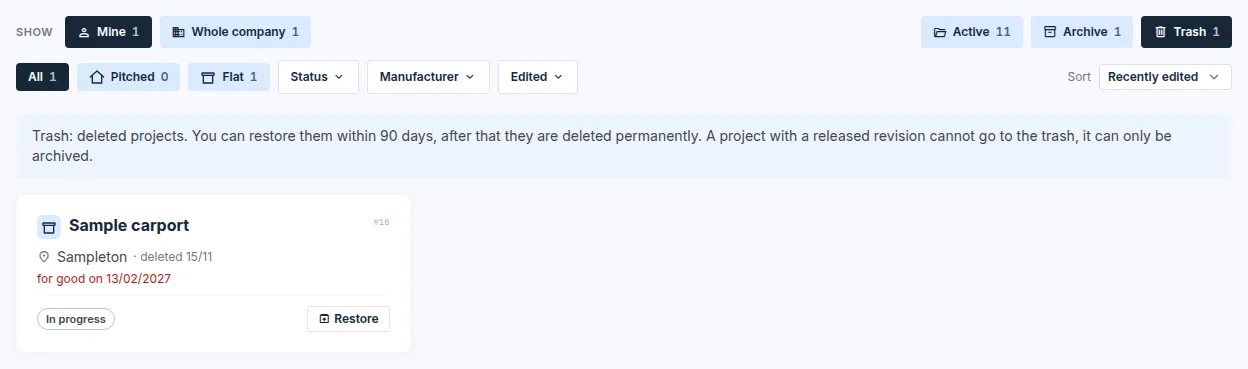
- You open the trash with the
Trashswitch on the right above the cards. Each project shows when it was deleted and when it will be deleted for good. - Within 90 days, the
Restorebutton brings the project back. It returns to where it was: an archived project to the Archive, the others to the overview. - A project in the trash cannot be opened. After 90 days it is deleted for good and can no longer be restored.
- A project with a released revision cannot go to the trash, because a released revision is a record of what you handed over. Instead of deleting, the window offers
Archive.
Who may archive and delete
- The author of a project may archive it, delete it and restore it from the trash. The company owner may do the same with a member's project.
- A company member can open and edit a colleague's project, but cannot archive, delete or restore it.
- In the
Whole companyview, the Trash also shows projects that colleagues deleted. - Projects in the archive and in the trash still count towards the limit on new projects. They do not free up a place in it.
Updated