

Released revisions
Releasing a protocol or a supplier document as a revision numbered R1, R2 … What a revision is, how to download it, release a new one and how to revoke it.
What a released revision is
- A released revision is a document stored exactly as it looked at the moment of release. Later changes to the project, the catalogue or the calculation do not change it.
- A revision cannot be deleted or edited, only revoked.
- The working version from the preview changes with the project and its footer says “Working version – not released”. A released revision carries on every page the revision number, the release date, the name of the person who released it, the document ID and the content fingerprint.
So release a document that you hand over to the client or a supplier as a revision.
Which documents can be released
Complete project protocol, only in full. With a chapter switched off, a revision cannot be released.- Documents for suppliers with a PDF supplier document: thermal insulation and tapered wedges, anchoring, fall protection system and green roof. They are always released in full.
- The bill of materials is not released as a revision. It is available as a preview, PDF and CSV.
Revisions are numbered per document. Each of these has its own series R1, R2 …: the complete protocol of each roof, the protocol for all roofs and each supplier document. Releasing the anchoring document therefore does not move the number of the complete protocol.
1. Release a revision
- In the cockpit, open the
Protocolstab. - Find the document card:
Complete project protocol, or the supplier document card in theDocuments for supplierspart. - Choose the roof, or
All roofs. - In the
Released revisionspart, clickRelease revision. - Read the notice and confirm with
Release.
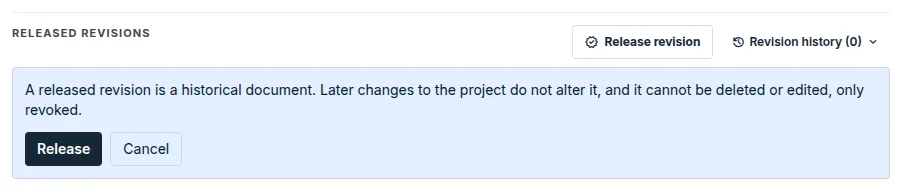
Anyone who may edit the project can release and revoke revisions.
2. History and download
- Click
Revision history. The number in brackets is the number of released revisions. - For each revision you see the number, status, release date, who released it, the content and file fingerprints and the size.
Downloadreturns the stored document. It is not rebuilt, so it is always the same as at release.
Revision statuses:
Current: the latest revision that has not been revoked.Superseded: a newer released revision exists.Revoked: the revision has been revoked. Its date and reason are shown.
For a revision of the thermal insulation and tapered wedges document, the history also has the
Print for siteandSite linkbuttons. They are described in the guide Site drawing.
3. Release a new revision after changing the project
A released revision is not corrected. If you change the project after the release:
- Edit the project and recalculate whatever the application marks as outdated.
- Check the document preview.
- Release a new revision. It gets the next number and the previous revision is marked as
Superseded.
4. Revoke a revision
- In the history, click
Revokenext to the revision. - Enter the
Reason for revocation. A revision cannot be revoked without a reason. - Confirm with
Revoke revision.
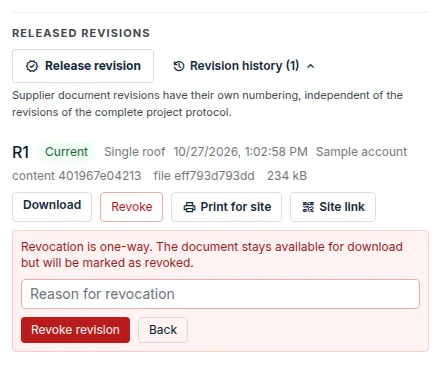
- Revocation is one-way. The document remains available for download but is marked as revoked.
- Revoking does not make an older revision valid again. The document has no valid revision until you release a new one.
- A revoked revision of a supplier document cannot be printed for site, and the site link does not show it.
When a revision cannot be released
- The content selection is not complete. The complete protocol is released only in full. Switch on all chapters in
Protocol contents. - The document is not available yet. A calculation is missing; the card or the roof readiness tells you which.
- The fall protection system has not passed the check. The fall protection system document is released once the design passes the check. You can see the reason in the fall protection editor in the
Evaluationstep. - Another revision was created in the meantime or the project changed during the release. Release again.
If the download ends with the message “The released revision is not available in the form in which it was released.”, the stored file does not match what was released. The application does not repair it by rebuilding. Release a new revision.
Updated