

Protocols
The complete project protocol for the designer, the client and the general contractor. How to build it for one roof or all roofs, save it as a PDF and what roof readiness means.
Where to find protocols
In the project cockpit, open the Protocols tab in the Outputs group. The tab has three parts, one below the other:
Project documentation: the complete project protocol, described in this guide.Documents for suppliers: documents by trade, see Documents for suppliers.Bills of quantities: the bill of materials for budgeting and purchasing, see Bills of materials and CSV exports.
Nothing is generated automatically. A document is only created when you open it.
1. Build the complete protocol
- In the
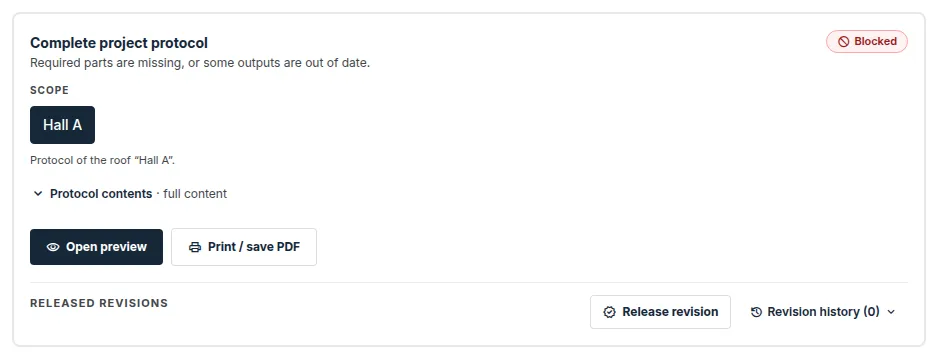
Complete project protocolcard, choose the roof in theScopepart. For a project with several roofs, there is also theAll roofsoption. - Only want part of the protocol? Expand
Protocol contentsand switch off the chapters you do not need. The default is the full content. - Click
Open preview. The protocol opens in a new browser tab. - For a PDF, click
Print / save PDF. The print dialog opens, where you choose to save as PDF.
- A roof for which the protocol does not apply is visible in the switch but cannot be selected. The application says why.
- In the protocol for all roofs, each roof is on its own divider sheet. Archived roofs are not included.
- For a facade, the switch is called
Facadeand the optionAll facades.
Protocol contents
The chapters are in the groups Basics and calculations, Designs and drawings and Optional modules. Only what applies to the roof is offered.
- You can have the wedge plan in
colourorblind. - Chapters of optional modules (fall protection system, diverters, green roof) are only included in the protocol when their calculation is complete and has passed the module check.
- For a pitched roof, the covering assessment is always in the chapter.
Select allrestores the full content.
A protocol can only be released as a revision in full. The content selection is for the preview and the PDF.
2. Roof readiness
Below the card is the readiness of the selected roof: what is done and what is still missing or needs checking. Expand the detail with the Show detail link.
The card header shows the protocol status and, below it, one sentence saying why:
Ready: the selected roof is ready for the protocol.Needs review: something in the protocol is missing or needs to be checked.Blocked: the readiness check reports a blocking problem.
When the protocol cannot be built yet, this is stated below the buttons, for example “The professional report will be available once the slope design has been calculated.”
The protocol is built only from current results. If you changed the roof after the calculation, first recalculate the slope design and then the modules that calculate from it. An outdated result does not get into the protocol as valid.
Working version and released revision
- A protocol from the preview is a working version. It reflects the project as it is today and its footer says “Working version – not released” with the date it was created.
- When you pass the protocol on, release it as a revision. A released revision is a stored document numbered R1, R2 …, and later changes to the project do not change it. The procedure is described in the guide Released revisions.
Good to know
- The complete protocol is technical documentation for the designer, the client and the general contractor, so it also includes the client's details. Documents for suppliers do not include them.
- The protocol contains no prices.
- Every protocol contains an important notice that the design does not replace a professional design. The limits of the outputs are described in the article What FredIQ does not assess.
Updated