

Several roofs in one project
When to add another roof to a project, how to switch between roofs, what they have in common and how to archive or delete a roof.
When to add another roof
- One roof is enough for a typical project.
- Add another roof when the building has a separate part that you want to enter and evaluate separately, for example an extension or another wing.
- Each roof has its own outline, calculations and results. A figure for one roof never applies to another.
- All roofs of a project have the same type. For a flat roof they also have the same structural deck type, see New project and roof type.
Add a roof
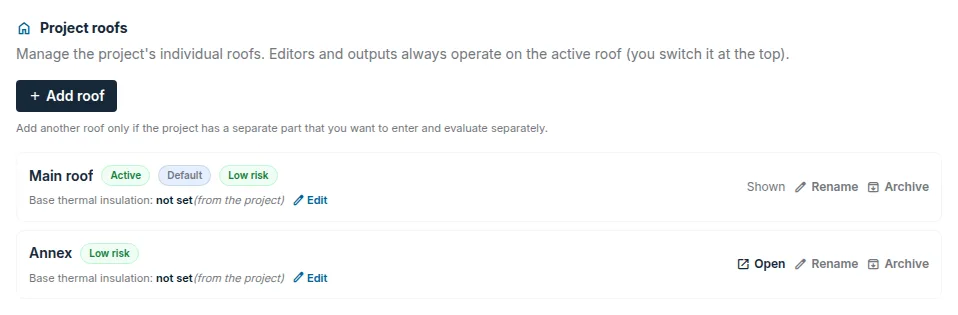
- In the project cockpit, open the
Roofstab. - Click
Add roof, type a name and clickCreate and open. - The new roof is empty and becomes active. You draw it in the editor, see Drawing a roof.
In the flat roof editor:
- The
Add sectionbutton below the roof switcher adds a roof in the same way. - When you draw another outline in a roof that already has an area, the editor asks whether to create a new roof from it. If you confirm, a new roof is created and the editor switches to it. The original roof stays unchanged. If you cancel, the drawn outline is discarded.
Switch the active roof
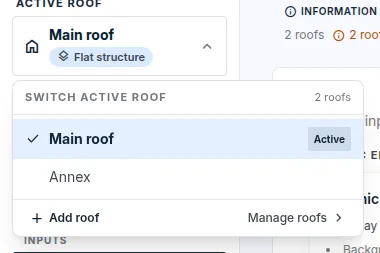
- The project cockpit, the editors and the results always work with one roof, the active roof.
- In the project cockpit, the switcher is on the left below the project name; in the editor, it is at the top of the left panel in the
Roof sectionspart. Click it and choose a roof. In a project with many roofs, you can search by name. - The flat roof editor saves the drawing in progress before switching. If saving fails, it stays on the original roof.
What roofs have in common
- On the
Materialstab, each setting has a badge showing what it applies to:Globalfor the whole project,Active roofonly for this roof,Global + rooffor a project default that can be overridden for the roof. - A change of the project default does not carry over to a roof that has its own value.
- You set the base thermal insulation on the
Roofstab for each roof. An empty field means the value from the project. - You release the complete project protocol for one roof or for
All roofs. More in the guide Protocols.
Rename, archive, delete
On the Roofs tab, for each roof:
Renamechanges the name.Archivehides the roof from routine work without deleting the data. Archived roofs are not included in the overall totals. You bring a roof back with theRestorebutton.- Only an archived roof that is not the last one in the project can be deleted permanently. Delete an empty roof with the
Delete permanentlybutton and a roof with data with theDelete permanently, including databutton. Deletion cannot be undone. - A project must have at least one active roof.
Facades
In a Facade project, you add facades instead of roofs: the Facades tab, the Add facade button. Switching, archiving and deleting work the same way. More in the guide Facade panel layout.
Updated