

Anchor plan
Anchoring the waterproofing in zones according to the anchor densities you enter. Anchor placement in the welds and the anchor clamping lengths grouped in steps as a basis for ordering.
The anchor plan covers the mechanical anchoring of the roof cladding. It is not fall protection for people, which is described in the Fall protection guide.
What the anchor plan does
- FredIQ does not calculate wind suction. You enter the anchor density in pieces per m² from an assessment made outside FredIQ.
- The application converts the densities into anchor lines in the welds of the waterproofing and places the anchors across the roof.
- At each anchor it determines the clamping length: the thickness of the build-up the anchor passes through. For ordering, it groups them in steps.
Before you start
- The roof is drawn with a scale.
- In the
Materialstab, the main waterproofing is selected. In a two-layer bitumen build-up, theBase sheetis anchored, so select it as well. - The roof has a base insulation thickness entered (in the roof editor in the
Stepswindow, or inMaterials). Without it, the clamping lengths are not issued. - On a roof with tapered wedges, the slopes are calculated. The clamping lengths come from the wedge heights.
1. Open the anchoring
- In the project cockpit, open the
Calculationstab. - On the
Roof-cladding anchoringcard, clickOpen roof-cladding anchoring. If the geometry or the build-up is missing, the card first offersOpen geometry editororAdd assembly.
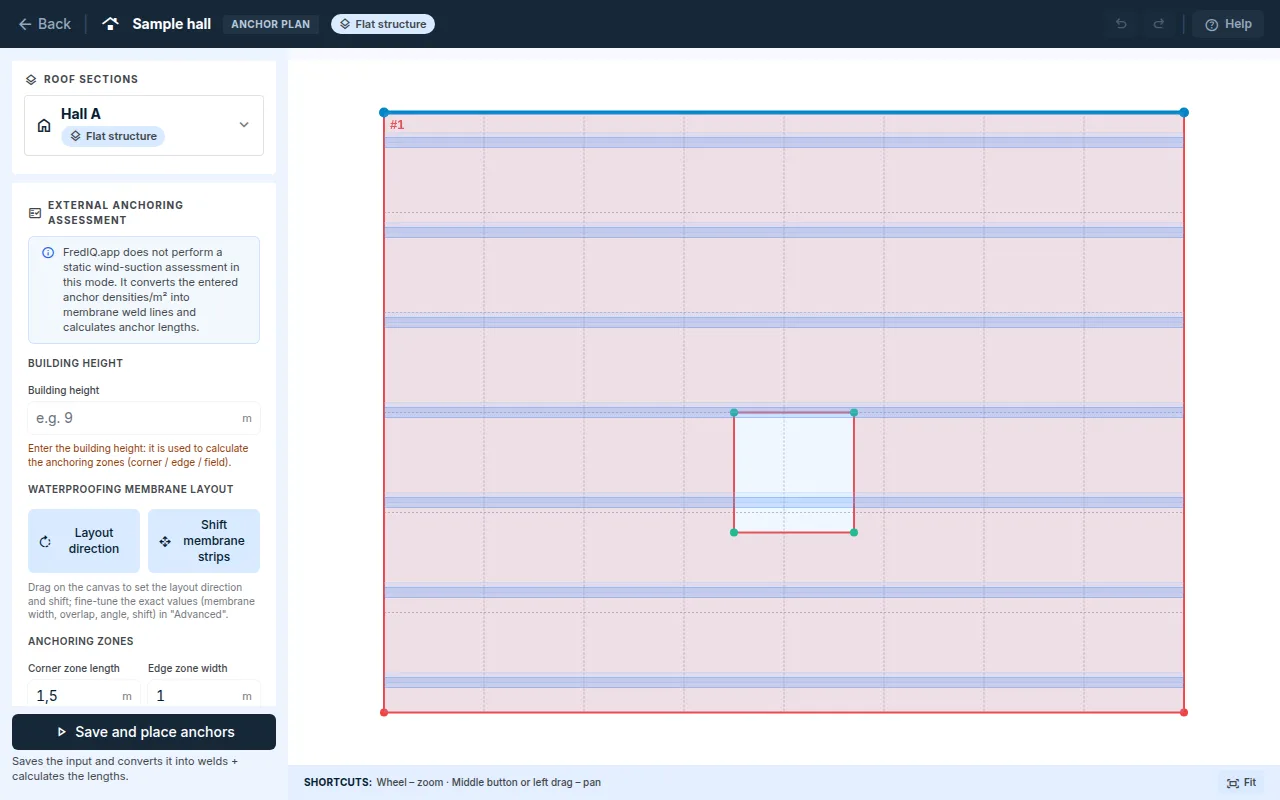
2. Zones and densities
- Enter
Building height. It is used only for the size of the anchoring zones, not for a wind calculation. - In the
Anchoring zonessection, clickSuggest from building height, or fill inCorner zone lengthandEdge zone widthyourself. The field is the rest of the roof. TickShow zones in the editorto see them on the canvas. - In the
Anchor density in zonessection, enter forCorners,EdgesandFieldthe number of anchors per m² from your assessment. At least one density is required. - For each zone you can see how far apart the anchors come out. The
Minimum anchor spacingfield checks that they do not come out too close. If they do, the application suggests anchoring in the middle of the strip as well, or a narrower roll. It does not remove anchors.
3. Waterproofing membrane layout
- The membrane layout is the arrangement of the waterproofing strips. You set the direction and offset by dragging on the canvas (
Draw direction,Shift membrane strips), and exact values in theAdvancedsection. - The anchors lie in the welds. Their spacing is the effective strip width: the roll width minus the overlap. The roll width is taken from the main waterproofing (
From settings), or you enter it yourself (Manual). - For wide rolls, turn on
Also anchor in the middle of the strip (wide rolls). The density stays the same, the anchors are spread over more lines.
4. Perimeter and openings
Roof perimeter:Anchorswith the spacing from thePerimeter / opening anchor spacingfield, orAnchor plate. With an anchor plate, no perimeter anchors are placed.- The
Anchor around openings and along the perimetercheckbox turns on anchoring around openings and along the perimeter.
5. Clamping lengths and anchor placement
- In the
Anchor clamping lengths for ordering (KL table)section, set theGrouping step. An empty field means 10 mm. - Click
Save and place anchors. TheSave only (no calculation)button saves the input without placing anchors.
The anchor manufacturer converts the clamping lengths into the lengths of the anchor components (telescopes and screws) using their own tables. FredIQ does not determine them.
6. Result
The Result panel shows:
StatusandOutput status(Up to dateorOutdated),Total anchorsand the number of welds,- per zone the target, the anchors placed, the spacing, the weld length and the entered and achieved density. A difference between the target and the anchors placed is normal, the anchors lie only in the weld lines,
- the
CSV anchoring planbutton.
The clamping lengths always have a status:
- Verified: they come from a verified build-up and the entered base insulation.
- Not verified – non-binding: the values are indicative. The application gives the reason, for example that the roof has no slope design.
- Outdated: an input has changed since the calculation. The values are not issued, recalculate the anchoring.
Anchors at a point drain go to individual assessment. The schedule lists them on a separate line.
Outputs
Protocolstab: theAnchor planandAnchor listchapters.- In the
Documents for supplierssection, theAnchoringcard:Supplier document PDF – anchoringandOverview for ordering and quotation (CSV). They state the anchor clamping lengths grouped in steps and their verification status.
A project taken over from Roof Calculator has the zones and densities from the calculation. The
Taken over from Roof Calculatorpanel shows them, and you place the anchors with thePlace anchors againbutton. More in the Project from Roof Calculator guide.
When to recalculate
- The anchor plan is
Outdatedafter a change of the geometry, the slopes, the main waterproofing, the base sheet or the insulation thickness. The application does not use an outdated plan as valid. - Open the anchoring and click
Save and place anchorsagain. - If you calculate the anchors before the slopes, the lengths are calculated without the tapered wedges. The application says so and recommends taking over the anchors again after the slopes are calculated.
FredIQ does not assess the load capacity of the anchors or the structural design. More in the What FredIQ does not assess article.
Updated