

Fall protection
Indicative design of anchor points and lifelines against people falling from the roof. Hazardous edges, roof exit, system type and usage, design check and export.
The fall protection design is indicative. It works with generic components, and before installation the system supplier must confirm it or, where needed, complete it. FredIQ does not assess the load capacity of the anchor points or the structural design, see What FredIQ does not assess.
Fall protection for people is not the anchoring of the roof cladding. Anchoring of the waterproofing is described in the Anchor plan guide.
Before you start
- The roof is drawn with a scale and each perimeter edge has a type:
Free,ParapetorWall. More in the Perimeter edge types guide. - Openings have an
Opening typein the roof editor (skylight, chimney, shaft …). It is taken over into fall protection as a suggestion to confirm. - The slopes are calculated. The anchor heights are taken from them. Without them, the design is created only as indicative, with unverified heights.
1. Open the editor
- In the project cockpit, open the
Calculationstab. - On the
Fall protection systemcard, clickOpen fall protection system. - The
Stepswindow at the top right guides you through four steps:Hazardous edges,Roof exit,SystemandEvaluation. The left panel shows the open step.
Each step shows a tick (entered), a warning icon with a reason (something needs fixing), or a number (not entered yet). A tick means “entered”, not “safe”.
2. Hazardous edges
- Click
Import from RoofEditor. The editor takes over the outline, the openings and the edge types from the roof. Until then, the other steps are locked. - Go through the
To check and confirmlist. A type that nobody has set is preset to the safe side: a free edge, or a fall-through opening. - If your type differs from the type in the roof, choose
Take from the rooforKeep mine. - Click
Confirm edges and continue. Only this confirms the types.
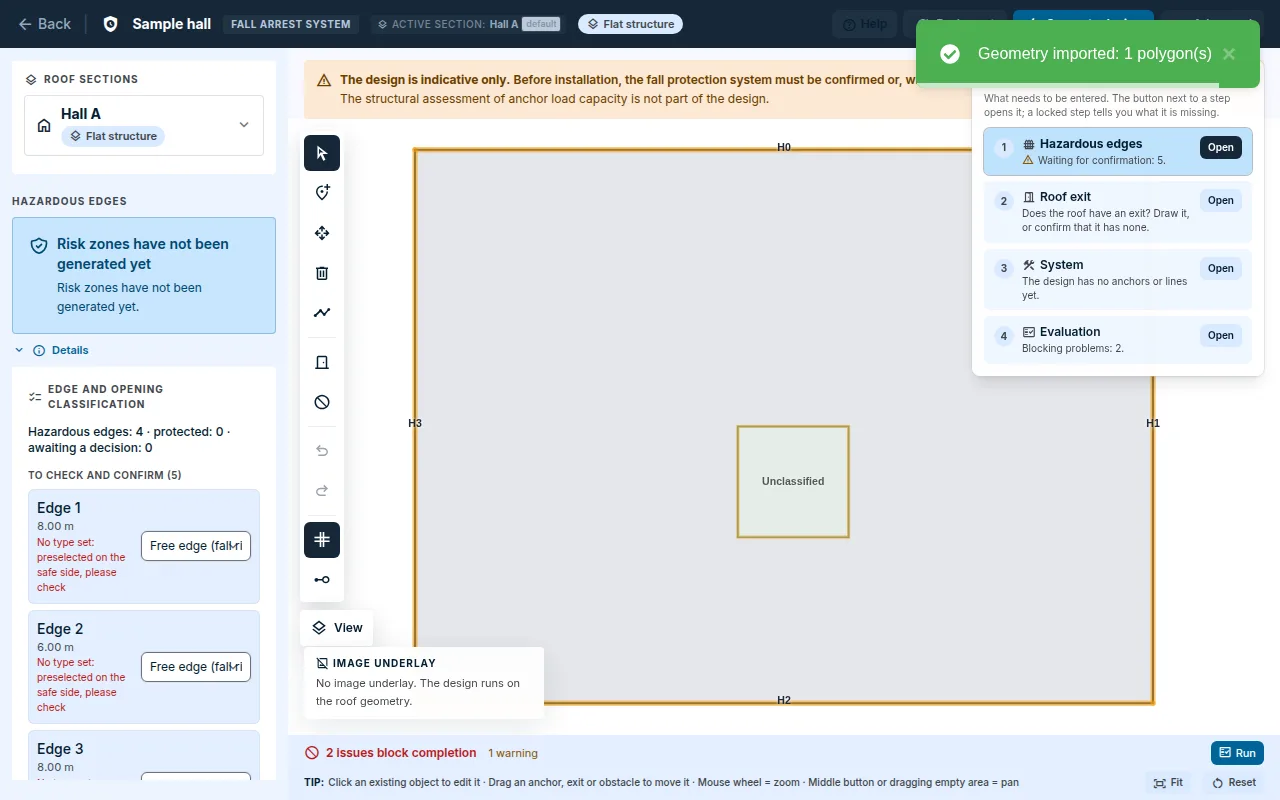
- Mark an opening that is secured, for example by a fixed grille, in the opening panel with the
The opening is securedswitch, with a note on what secures it. - If the roof changes later, load it again with the
Re-importbutton.
3. Roof exit
- Click
Draw exitand then click the place of the exit in the plan. A roof without an exit:The roof has no exit. - In the exit panel, choose
Path from the exit:Protected path beyond the hazard zone (railing): no exit anchor is needed.No protected path – anchor within arm’s reach: the generator places an exit anchor at the exit. The worker clips onto it while still in the exit and walks secured to the safe zone.
Draw the exit before generating. An exit added afterwards means generating again.
4. System
System type:Point,Line,Combined(anchor points and a lifeline), orAutomatic (as recommended). The recommendation is indicative.Override manuallylocks the type, further generation does not change it.Usage:Restraint: the worker cannot reach the edge at all.Fall arrest: a fall is expected and arrested, there must be enough clear space below the edge.Mixed use: partly restraint, partly fall arrest. The check cannot assess it yet. Choose one usage for the whole roof, or divide it into several roofs.
- For fall arrest, fill in
Fall clearance heightand the information about an obstacle below the edge in the edge table. TheSame fall clearance height everywhere (m)field with theApply to allbutton fills in the edges that have no value of their own. A blank entry means “unknown”, not “safe”. - The
Edge protection intentwindow next to the canvas sets the intent for individual edges. The design parameters are in the collapsedAdvancedsection.
Click Generate and evaluate. The generator places the anchors and lifelines, runs the check and opens Evaluation. If a design already exists, it asks first, because generating replaces the anchors and lifelines.
5. Evaluation
- The list of problems has the blocking ones at the top and the warnings below them. Without blocking problems it shows
No blocking errors. - Each row has a button that takes you to the place of the fix, for example
Go to Hazardous edges,Go to System,Enter fall clearance,Fix automaticallyorShow in plan. System summaryshows the type, the protection method, the numbers of anchors and lifelines, the lifeline length, the coverage of the risk zone and the uncovered sections. The coverage must be complete.- The
Exportssection containsExport design. It unlocks once the list contains no blocking problem. - If the anchor heights are not verified (the slopes are missing or not up to date), the output is created with the notice
Indicative – anchor heights not verified.
The check runs on its own after generating and after every change of the design. To run it manually, use the Run validation button. The status The design has not been checked yet or The design changed since the last check does not mean that the design is fine. It means that this is not known.
Manual edits
- Tools:
Add anchor,Connect with line,Move anchor,Delete element,Add exitandAdd obstacle. Connect with line: click on anchors or into the area,Entersaves the lifeline.- In a selected lifeline section, you can use
Space points evenly.Alttemporarily turns snapping off. - After every change, the check runs again. Until it finishes, the old result does not apply.
Outputs
Protocolstab: theFall protection systemchapter, and in theDocuments for supplierssection theFall protection systemcard with theSupplier document PDF – fall protection systemdocument.- All outputs carry an indicative design watermark with a call to consult the manufacturer or the supplier of the system.
Updated