

Green roof
Green roof build-up, gravel border, paths and fire divider strips. Quantities of substrate, drainage, gravel and trims, and the saturated load.
What the green roof calculates
The module issues quantities of the green roof build-up: the substrate area and volume, vegetation, drainage, root barrier and textiles, gravel, trim heights and lengths, and the saturated weight of the build-up. It does not assess the structural design, the fire safety of the building or the drainage of the green roof.
Before you start, you need a roof drawn with a scale. In the default levelling mode, you also need calculated slopes (see below).
1. Open the green roof editor
- In the project cockpit, open the
Calculationstab. - On the
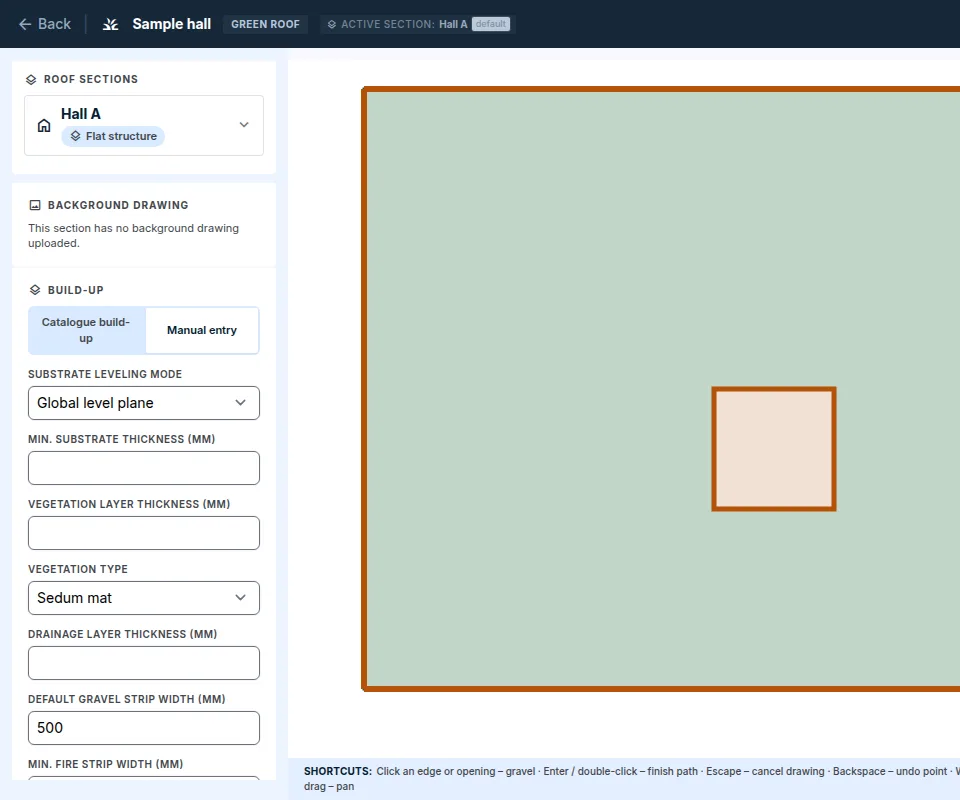
Green roofcard, clickOpen the green roof. - On the left are the
Background drawing,Build-up,Gravel border,Paths and divider stripsandCustomer visualisationsections. The quantities are shown in the floatingQuantitieswindow above the canvas.
2. Build-up
- In the
Build-upsection, select a build-up in theCatalogue build-upfield and clickApply build-up. The build-up prefills the layer thicknesses. For your own values, chooseNo build-up (manual entry). - Choose the
Substrate leveling mode:Global level plane(default): the substrate levels out the slopes to a plane. The volume is calculated from the thickness bands of the slopes, so the slopes must be calculated.Follow the slope: the build-up has the same thickness everywhere and does not need the slopes.
- Fill in
Min. substrate thickness (mm),Vegetation layer thickness (mm),Vegetation type(Sedum matorCuttings) and the other thicknesses. - Check
Default gravel strip width (mm)andMin. fire strip width (mm). - Click
Save build-up.
If you edit a catalogue build-up manually, saving detaches it from the catalogue and your thicknesses apply from then on. The editor warns you about this.
3. Gravel border
- The application creates the gravel border along the perimeter and around openings by itself. Click an edge or an opening in the plan to add or remove it.
- In bulk:
Mark whole perimeter,All openingsandSquares at all drains. For a drain, you enter the side of the square, and the gravel lies over the drain as a square. - You can change the strip width at an edge. An empty field = the default width from the build-up.
- Save the marking with the
Save markingbutton.
An opening of the Plant / equipment type (for example an HVAC unit on feet) is calculated differently from other openings: the area under it is not deducted, and the whole footprint under the unit is gravel, without vegetation.
If the geometry changes and a marked element disappears, the editor shows Marks without an element. Remove them with the Remove marks without an element button.
4. Paths and divider strips
- In the
Paths and divider stripssection, choose thePurpose:WalkwayorFire divider strip. Enter thePath width (mm). - Click
Draw a pathand draw a polyline by clicking in the plan. Enteror a double-click finishes the path,Esccancels drawing,Backspaceremoves the last point.
Fire safety rules
- A continuous vegetated area must not exceed 1,500 m². Divide a larger area with a fire divider strip at least 2 m wide, otherwise the schedule is not issued.
- Perimeter strips, gravel around openings and fire divider strips must not be narrower than
Min. fire strip width. The usual value of 500 mm, and at least 300 mm for lower-risk details, comes from an informative methodology. The binding solution is set by the fire safety design of the building. - The application does not know the boundaries of the fire compartments below the roof. Dividing the roof according to them is up to the designer.
5. Quantities
The Quantities window shows:
Vegetation,Substrate area,Substrate volume,Drainage,Root barrier + textilesandSaturated weightin tonnes,Gravel: volume and weight for the perimeter strips, the gravel around openings, the fire divider strips and the walkways,Edge trims:Dividing trim (green / gravel)andGravel stop (free drainage edge)by height.
The trim is as high as the build-up up to the top of the substrate, the vegetation layer is not counted. The height is rounded up to the next 10 mm. If it cannot be calculated (for example, the build-up does not state the thickness of a layer), the application does not state it and says why.
Outputs
Protocolstab: theGreen roofchapter, and in theDocuments for supplierssection theGreen roofcard with theSupplier document PDF – green roofandOverview for ordering and quotation (CSV)documents. The quantities are net, without waste and reserve.Customer visualisation: theCreate previewbutton creates a colour plan of the planted area and the gravel,Download imagesaves it.
When to recalculate
After a new slope calculation or a change of the roof, the result is out of date. In Global level plane mode, the substrate thickness bands no longer apply. Open the green roof editor and click Recalculate in the Quantities window.
Pass the saturated weight on to the structural engineer. FredIQ does not assess the structural design, see What FredIQ does not assess.
Updated