

Profile, password and language
Changing your name, e-mail and password in the profile, a forgotten password, the application language and the company logo on protocols.
Opening your profile
Click your name at the top right and choose Profile. The profile contains your personal details, the company's billing details, the company logo, your password and two-factor authentication.
Name and e-mail
- In the
Personal detailssection, editNameorEmail. - Click
Save changes.
The new e-mail address applies immediately, including for signing in.
Password
- In the
Change passwordsection, fill inCurrent password,New passwordandConfirm password. - Click
Change password.
Forgot your password?
- On the sign-in page, click
Forgot your password?. - Enter your e-mail address and click
Send instructions. - Open the link from the e-mail and set a new password. The link is valid for 60 minutes.
You can also secure your sign-in with a code from your phone, see Two-factor authentication.
Application language
- Click your name at the top right.
- In the
Languagesection, choose the language code:CS,EN,DE,PL,ESorFR. - The page reloads in the new language.
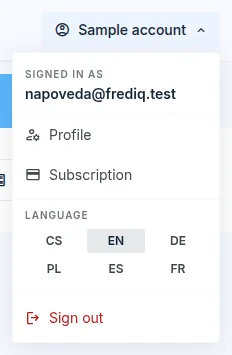
- FredIQ remembers the language for your account, so it also applies on another computer.
- FredIQ also sends you e-mails in the chosen language.
- Numbers are written according to the conventions of the language, for example with a decimal comma in Czech and a decimal point in English.
Company logo
The company logo is printed on the cover page of the protocol next to “Prepared by”, on the protocols of everyone in the company.
- In the
Company logosection, clickChoose file. The logo can be PNG or JPEG, at most 2 MB. - Click
Upload logo. You can remove the logo again with theRemovebutton.
- Only the company owner uploads and changes the logo. A company member can only see the logo in the profile.
- Without a logo, the protocol has the neutral FredIQ.app design.
Closing your account
- In the
Danger zonesection, clickDelete account. - Confirm with your password.
- Closing your account cannot be undone. Before you do it, download everything you want to keep.
- Are you a company member? Your projects pass to the company owner.
- Are you the company owner and there are other people in the company? Remove them from the company first, see Your company and its people.
Updated