

Two-factor authentication
Signing in with a password and a six-digit code from an app on your phone. How to turn on two-factor authentication, how to sign in with it and what to do without your phone.
What you will need
- A phone with an authenticator app, for example Google Authenticator, Microsoft Authenticator or Aegis.
- When signing in, you then enter not only your password but also the six-digit code that the app on your phone shows.
Turning on two-factor authentication
- Click your name at the top right and choose
Profile. - In the
Two-factor authenticationsection, enter yourCurrent passwordand clickTurn on two-factor authentication. - Scan the QR code in the authenticator app. If that does not work, enter the key shown below the QR code into the app manually.
- Enter the six-digit code from the app and click
Confirm and turn on. - Save the recovery codes with the
DownloadorCopybutton. Then clickI have saved the codes.
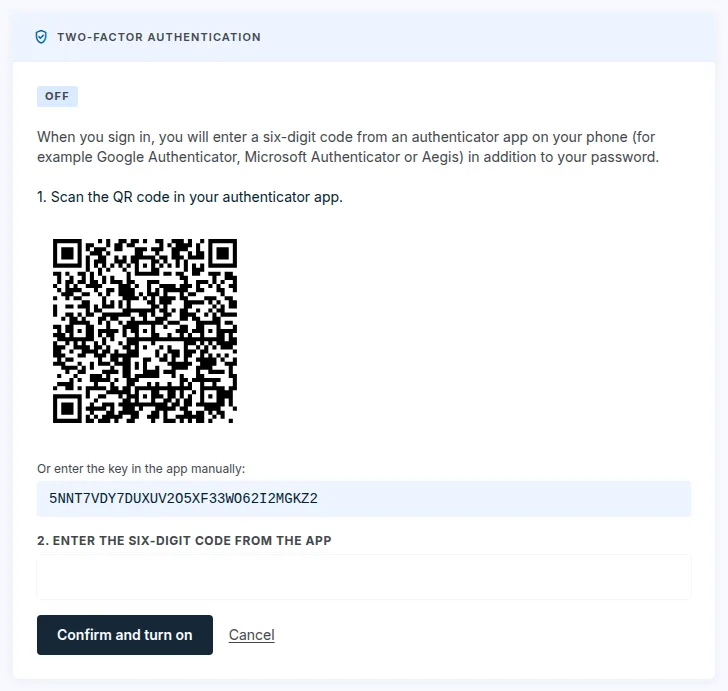
After you turn it on, you will receive a confirmation by e-mail.
Recovery codes
- You get 8 recovery codes. Each one works only once.
- They are shown only when you turn the feature on. You will not see them again.
- Store them somewhere other than your phone. If you do not have your phone at hand, you sign in with one of them.
Signing in with a code
- Sign in with your e-mail and password as before.
- On the
Enter the code from your apppage, type the code from your phone into theCode from the appfield. - Click
Verify.
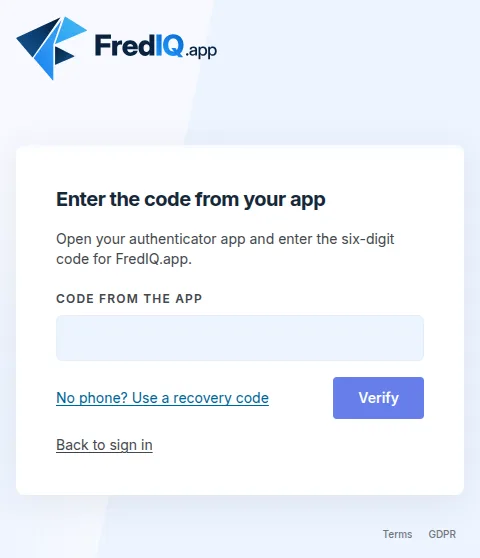
- Without your phone, click
No phone? Use a recovery codeand enter one of the recovery codes. - Enter the code within 10 minutes of entering your password, otherwise you start again with your password.
- The application asks for the code at every new sign-in. The
Remember meoption only saves you entering the password.
New recovery codes and turning it off
In your profile, in the Two-factor authentication section, enter your Current password and the current Code from the app. Then:
Generate new recovery codes: you get new codes, and the old ones stop working.Turn off two-factor authentication: after that, your password is enough to sign in again. Instead of the code from the app, you can enter a recovery code.
For some accounts, two-factor authentication is mandatory. The profile then says so, and it cannot be turned off. After sign-in, the application sends such an account to the Turn on two-factor authentication page and does not let it go anywhere else until two-factor authentication is turned on.
You have lost your phone
- Sign in with a recovery code.
- Turn off two-factor authentication in your profile: enter your password and another recovery code. The one you signed in with is no longer valid.
- Turn it on again with your new phone. You will also get new recovery codes.
Do you not have the recovery codes either? Write to the FredIQ operator; you will find the e-mail address in the footer of this page. After verifying your identity, the operator will turn off two-factor authentication for you.
Updated